

What Eyk builds from this data
Eyk copies your orders, products and customers into your own BigQuery project. BigQuery is the data warehouse Eyk sets up for you. Data from all your stores lands in the same tables, so you can compare stores side by side.
In Canvas and Alvin AI, these tables show up as Sales, Product Variants, Customers and Attributions. Attribution needs Eyk’s first-party tracking on your website. Eyk builds the RFM tables when RFM segmentation is on for your organization.
Connect an ad platform too, to see your return on ad spend and your profit after ad spend next to your sales. To open your BigQuery project, click Google BigQuery at the bottom of the Eyk sidebar.
Before you start
You need:- Access to WooCommerce >> Settings in your WordPress admin.
- Access to the Sources page in Eyk.
Part 1: Create REST API keys in WooCommerce
1
Open REST API
In your WordPress admin, go to WooCommerce >> Settings >> Advanced >> REST API.
2
Add a key
Click Add key. Enter a description, like
Eyk, and set Permissions to Read.3
Generate the key
Click Generate API key.
4
Copy both keys
Copy the Consumer key, which starts with
ck_, and the Consumer secret, which starts with cs_. You need both in Part 2.Part 2: Add the source in Eyk
1
Open the source library
In Eyk, go to Sources and click Add new source.
2
Select WooCommerce
In the Data source library, click Add next to WooCommerce.
3
Enter your store details
Enter your store address under Store URL, like 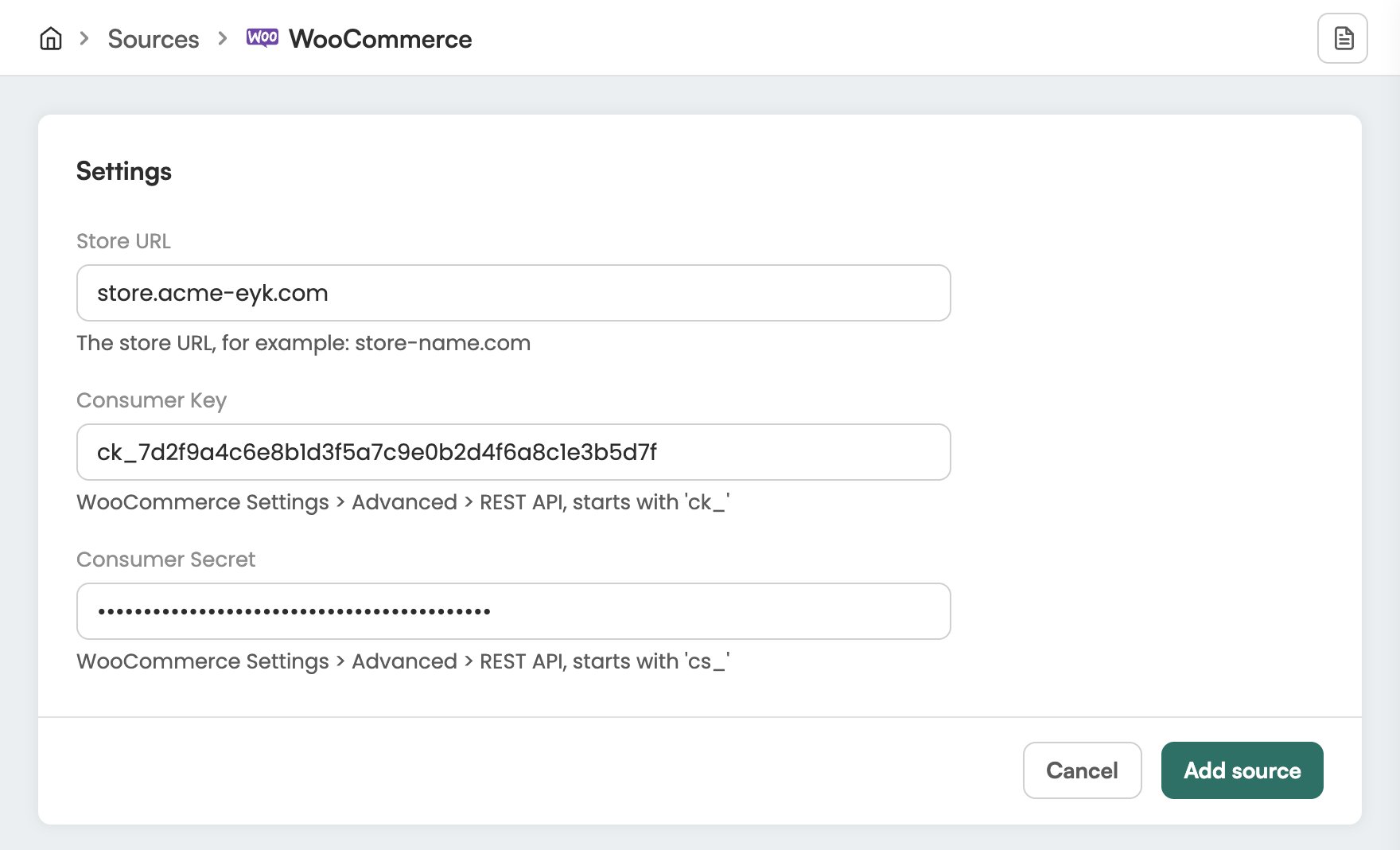
store-name.com. Paste the keys from Part 1 under Consumer Key and Consumer Secret.4
Add the source
Click Add source.
Check it worked
In Eyk, go to Sources. WooCommerce is in the list with the text Your data source is connected. Eyk updates your BigQuery tables every night.Troubleshooting
WooCommerce shows Attention needed
WooCommerce shows Attention needed
Open the WooCommerce source in Eyk and check the store URL and keys. If a key no longer works, create a new key in WooCommerce and enter it there.