
Combine with existing UTMs
If your links already carry UTM parameters, add the Eyk parameters to them. Separate each parameter with an& symbol.
Example:
eyk_source and eyk_id are combined with the standard utm_source parameter. Paste them together and separate each parameter with an & symbol.
Templates per channel
Meta
For Meta, go to each of your ads and click Edit. Place this tracking template in the URL Parameters field under the Tracking settings of the ad: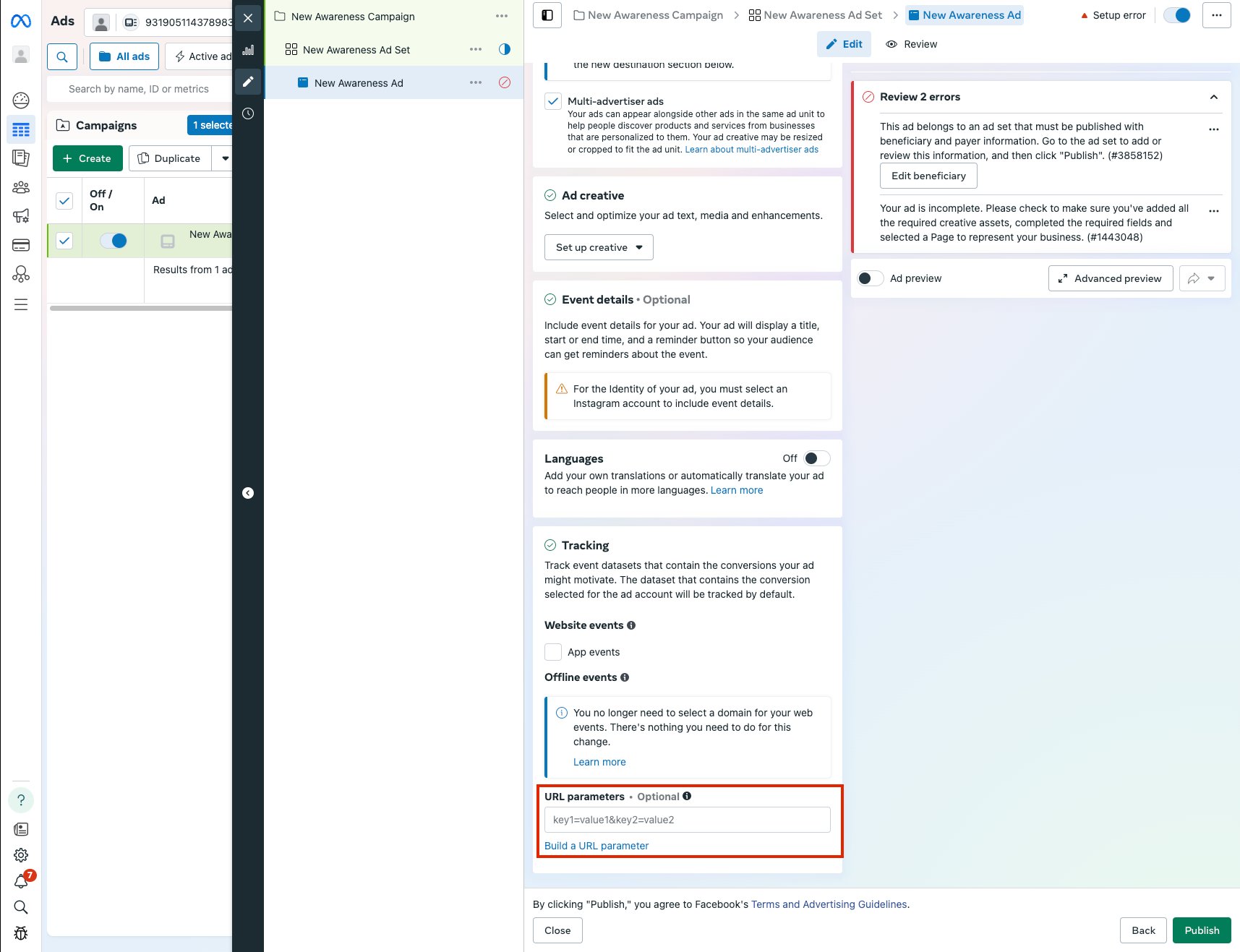
Google Ads
For Google Ads, go to Admin >> Account Settings >> Tracking. Place this code in the Tracking template field: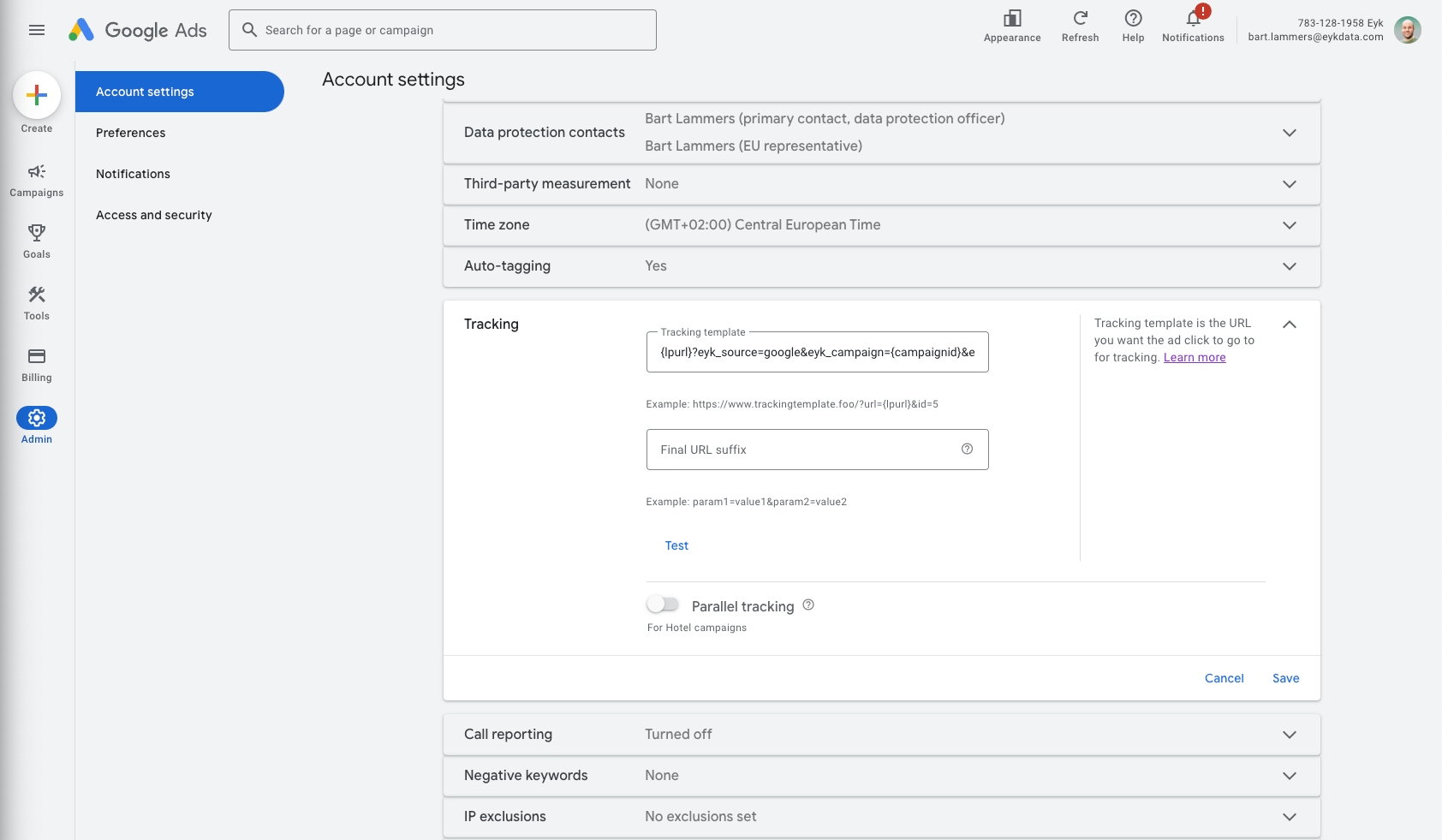
Google Ads allows tracking templates at the account, campaign and ad-group levels. An ad-group or campaign-level template overrides an account-level template. Update existing ad-group and campaign-level templates as needed.
Microsoft Ads
For Microsoft Ads, go to Campaigns >> Settings and open the Account level options tab. Place this code in the Tracking template field:Microsoft Ads allows tracking templates at the account and campaign levels. A campaign-level template overrides an account-level template. Update existing campaign-level templates as needed.
TikTok Ads
For TikTok, add the Eyk tracking parameters to every ad. TikTok has no way to bulk edit ads. For each ad, go to Edit ad and open the Destination section. In the Destination section, enter this tracking template in the URL field:Pinterest Ads
For Pinterest, go to each ad and scroll down to the Destination URL. Append this code to the Destination URL:https://example.com/product, the new destination URL with Eyk parameters is:
OpenAI Ads
For OpenAI Ads, go to OpenAI Ads Manager and open Campaigns. Open the three-dot menu of the campaign and select Edit campaign. Place this code in the Landing page query parameters field:{campaign_id} becomes the campaign ID and {ad_id} becomes the ad ID. Campaign and ad names are not available as placeholders.
OpenAI Ads allows query parameters at the campaign, ad-group and ad levels. An ad or ad-group-level setting overrides a campaign-level setting. Update existing ad-group and ad-level settings as needed.
Klaviyo
For Klaviyo, go to Settings >> Other, click UTM tracking and use Add UTM parameter to add these parameters:
Then set the toggle Automatically add UTM parameters to links to ON and click Save.
For existing campaigns, open Editing mode for each campaign. Scroll down to the Tracking section and set Include tracking parameters to ON. Set Customize tracking parameters to OFF.
Do the same for existing flows: open each flow in Edit mode. For each Email and SMS action in the flow, go to Settings and set Enable UTM tracking to ON.
Awin
For Awin, you cannot add the parameters yourself. Ask Awin to add them to your program as a click append, a setting that adds parameters to every partner link. Contact your Awin contact or use the support form in the Awin app. Ask for this click append:!!!sitename!!! becomes the partner’s site name. !!!promotype!!! becomes the partner’s promotion type, for example Cashback. The full list of placeholders is in Awin’s Click appends and dynamic parameters.
Other sources
You can track any other source in Eyk too. Add these three parameters to the links in your ads, emails or posts. Eyk shows the values exactly as you enter them in your reports, so use readable names that you recognize later.
Keep names stable. If you rename a campaign or ad, its traffic shows up as a new row in Eyk.
Example: