

Before you start
You need:- Owner, Admin or Manager access to your Klaviyo account.
- Access to the Tracking page in Eyk.
Part 1: Get your API keys from Klaviyo
1
Open API keys
In Klaviyo, click your organization name in the bottom-left corner and go to Settings >> API keys.
2
Copy the public API key
Copy your public API key, also called the Site ID. You need it in Part 2.
3
Create a private API key
Click Create Private API Key and enter a name, like
Eyk.4
Give the key event access
Under Select Access Level, select Custom Key. Give Events write access, then click Create.
5
Copy the private API key
Copy the key and store it somewhere safe. You need it in Part 2.
Part 2: Add the destination in Eyk
1
Add a destination
In Eyk, go to Tracking and click + Add destination.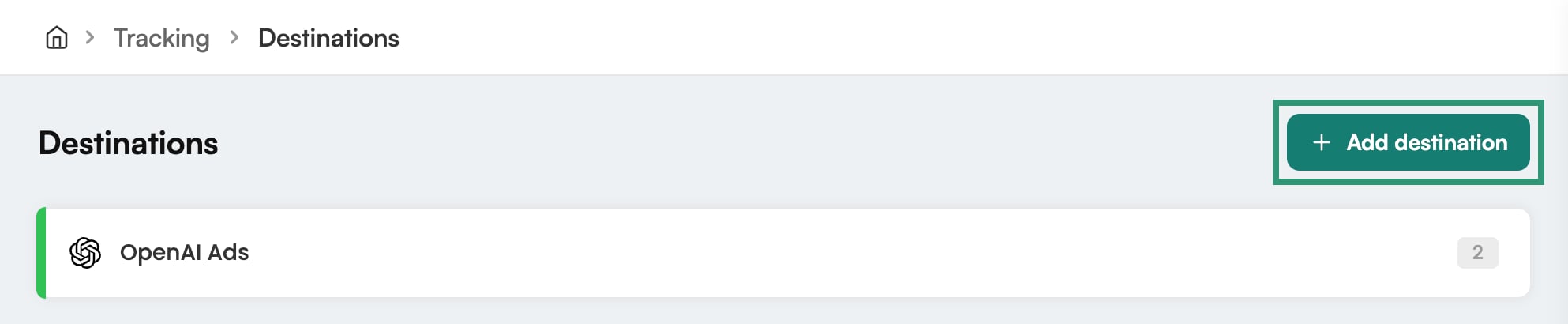
2
Select Klaviyo
In the Destination library, click Add next to Klaviyo.
3
Select your stores
Under Stores, select the stores that send events to Klaviyo.
4
Enter your API keys
Enter the private API key from Part 1 under Private API Key. Enter the public API key under Account ID.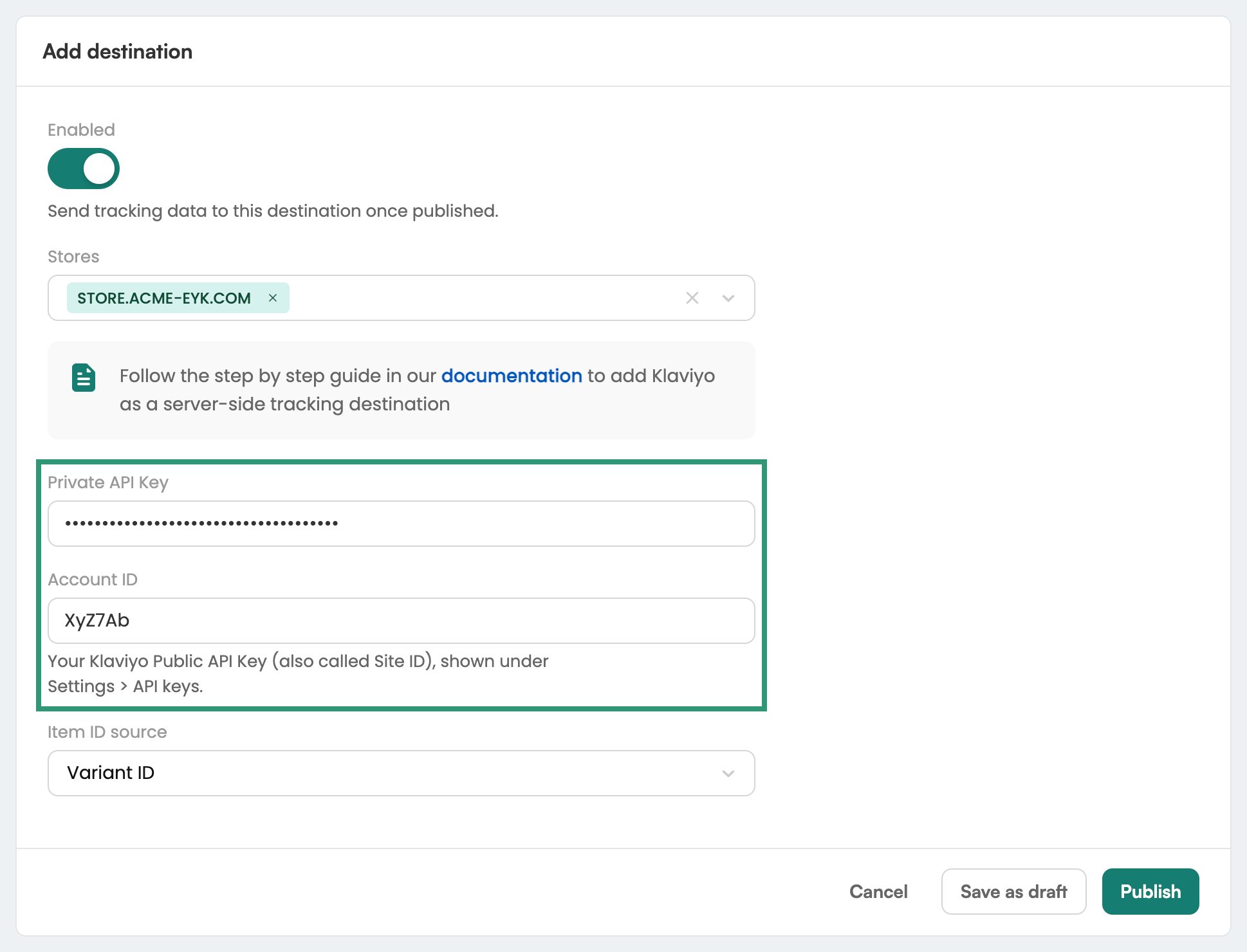
5
Select an Item ID source
Select an Item ID source. It determines which product identifier Eyk sends to Klaviyo. If you sync a product catalog to Klaviyo, use the same identifier type as that catalog.
6
Publish the destination
Click Publish. Eyk starts sending events to Klaviyo right away.
Check it worked
In Klaviyo, go to Analytics >> Metrics. Eyk’s metrics appear once visitors trigger the events on your website. Click a metric to see each event in its Activity feed.
Eyk also sends Added to Wishlist, Search - Eyk and Signed Up when your website reports these actions.
Refunds only come from Shopify stores and are off by default. To send them, open the Klaviyo destination in Eyk and go to the Event definitions tab. Turn on Refund, then click Publish all destinations.
Your existing flows, segments and campaigns keep using their current metrics. To use Eyk’s metrics, update them separately in Klaviyo.