Before you start
You need:- Access to the settings of your Firmhouse project.
1
Open Team members
In your Firmhouse project, click Team members under Settings in the menu on the left.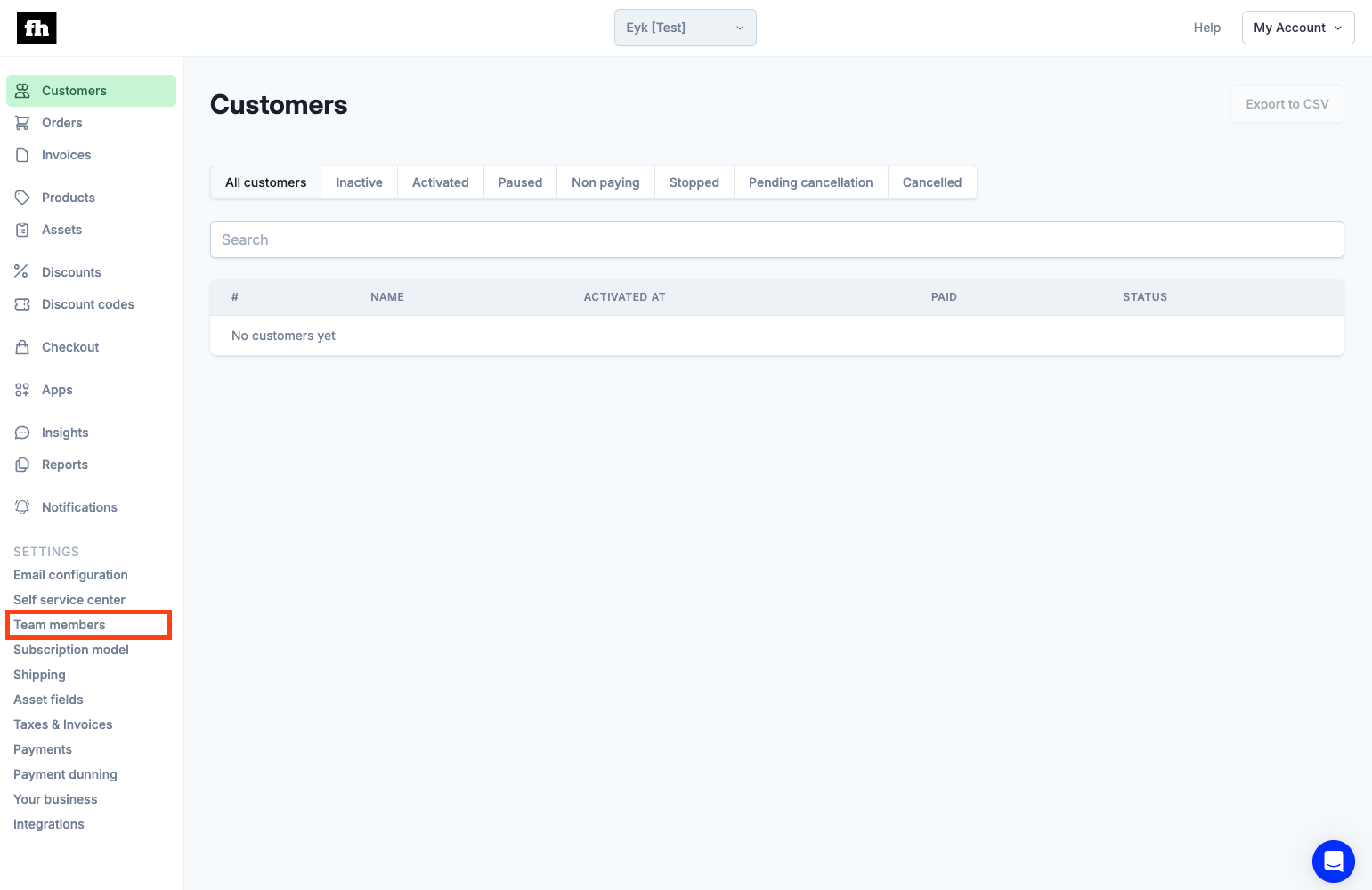
2
Send the invite
Click Invite new member in the top-right corner. In the pop-up, enter the email address tracking@eykdata.com and click Invite.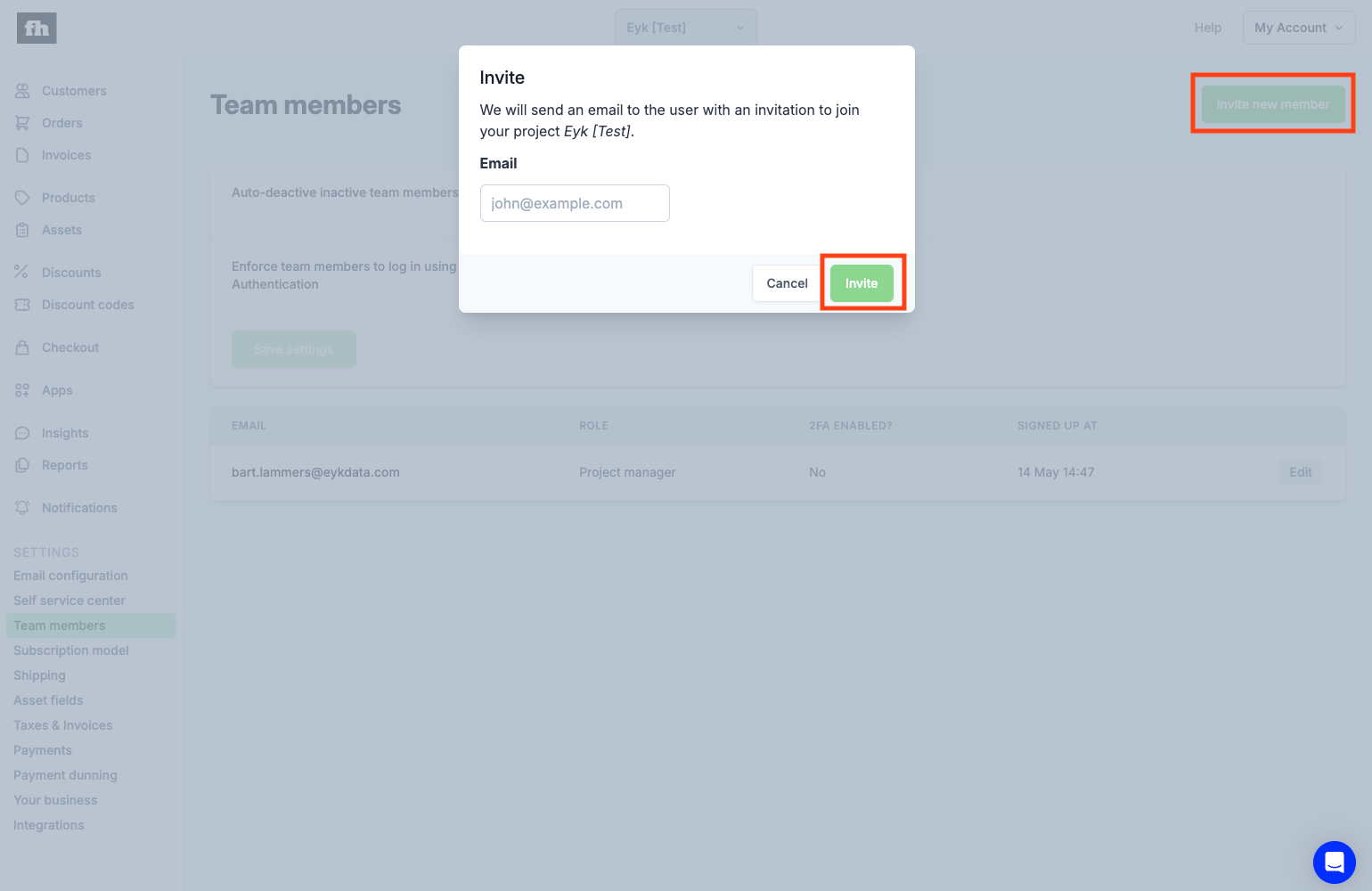
3
Notify your Eyk contact
You now see a screen like the one below. Let your contact person at Eyk know that you sent the invite. Continue with the next step after the Eyk team accepts it.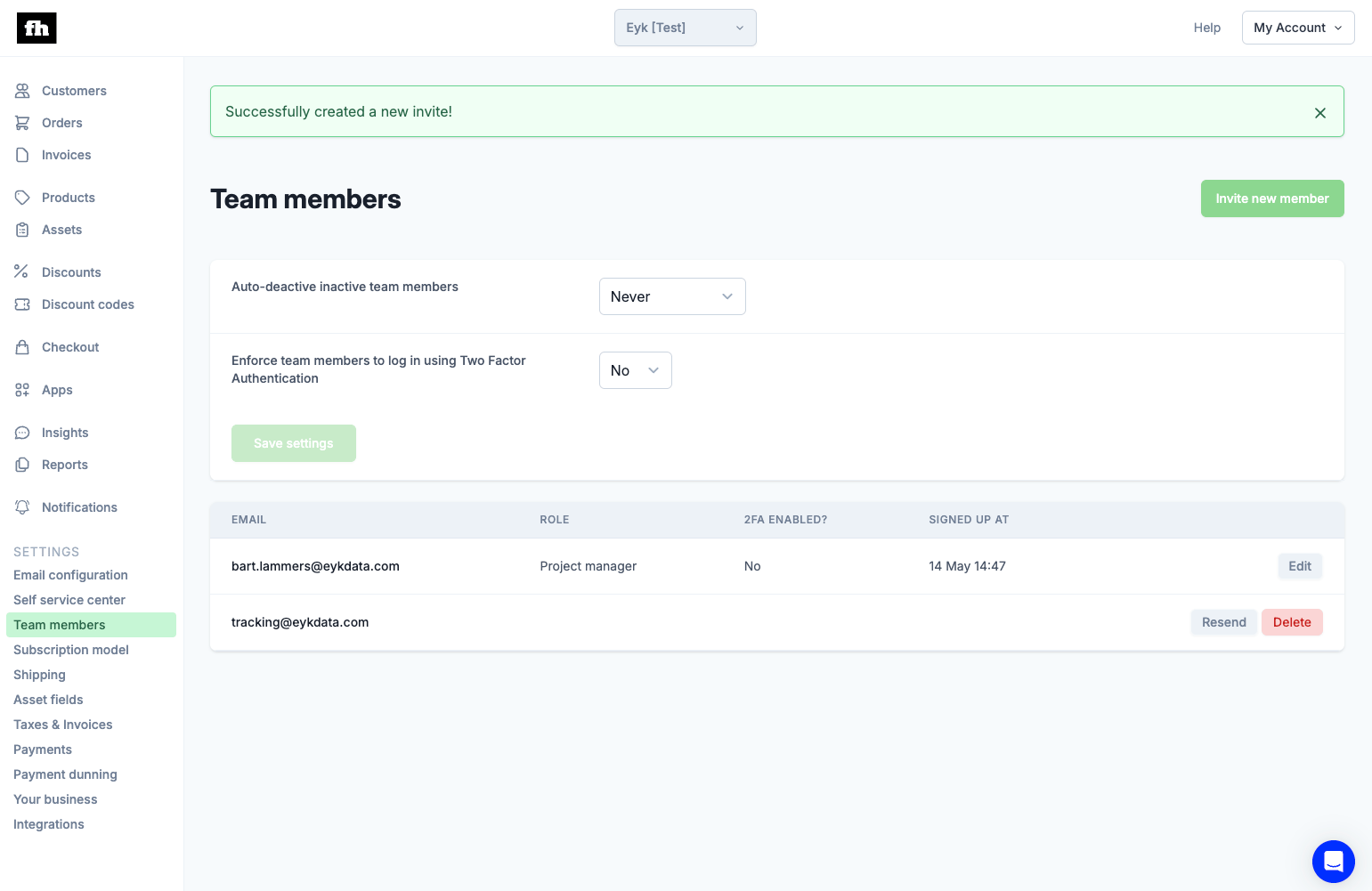
4
Open the member settings
When the Eyk team has accepted the invite, change the role of the tracking@eykdata.com user. Click Edit to open the pop-up.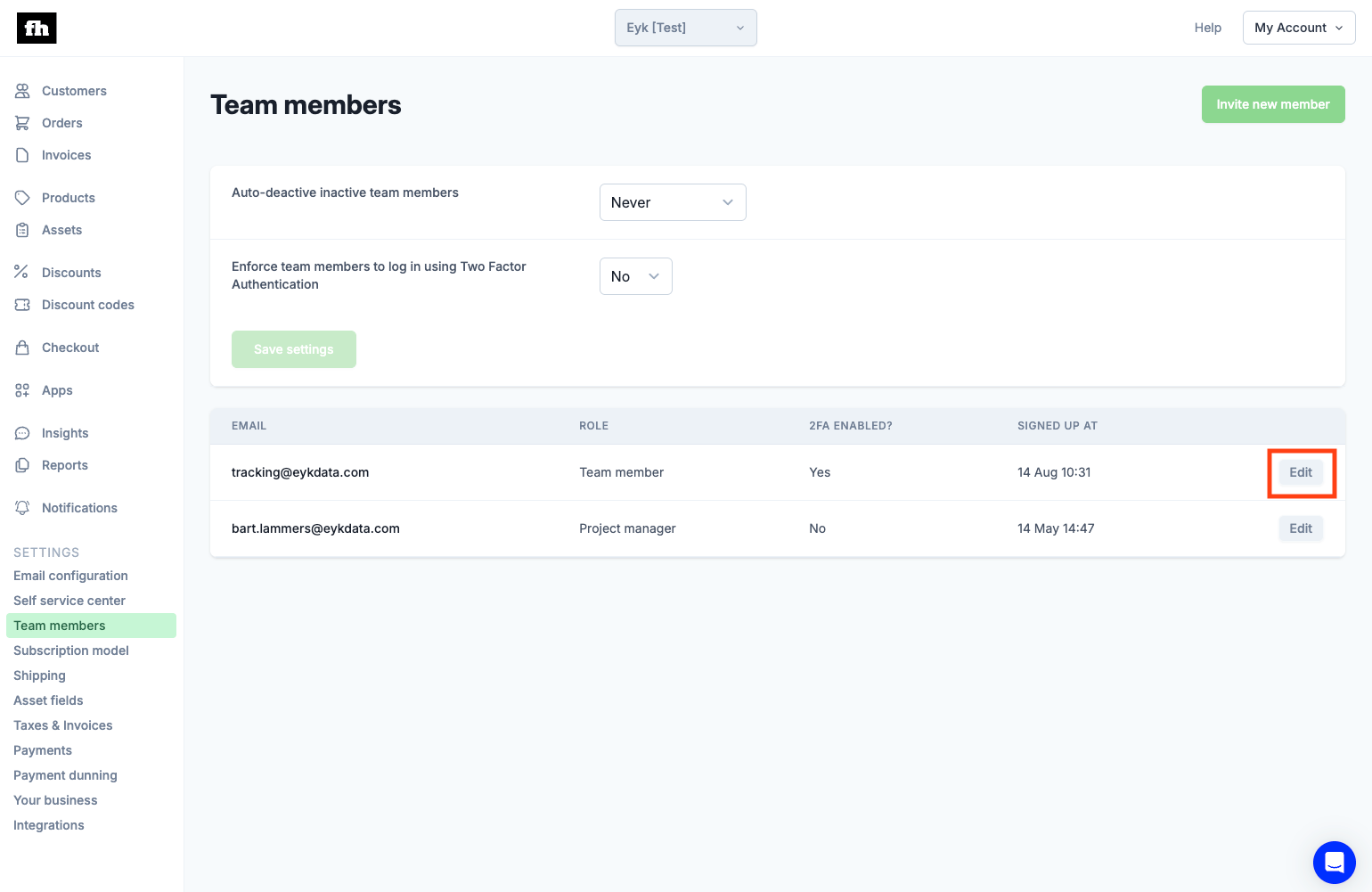
5
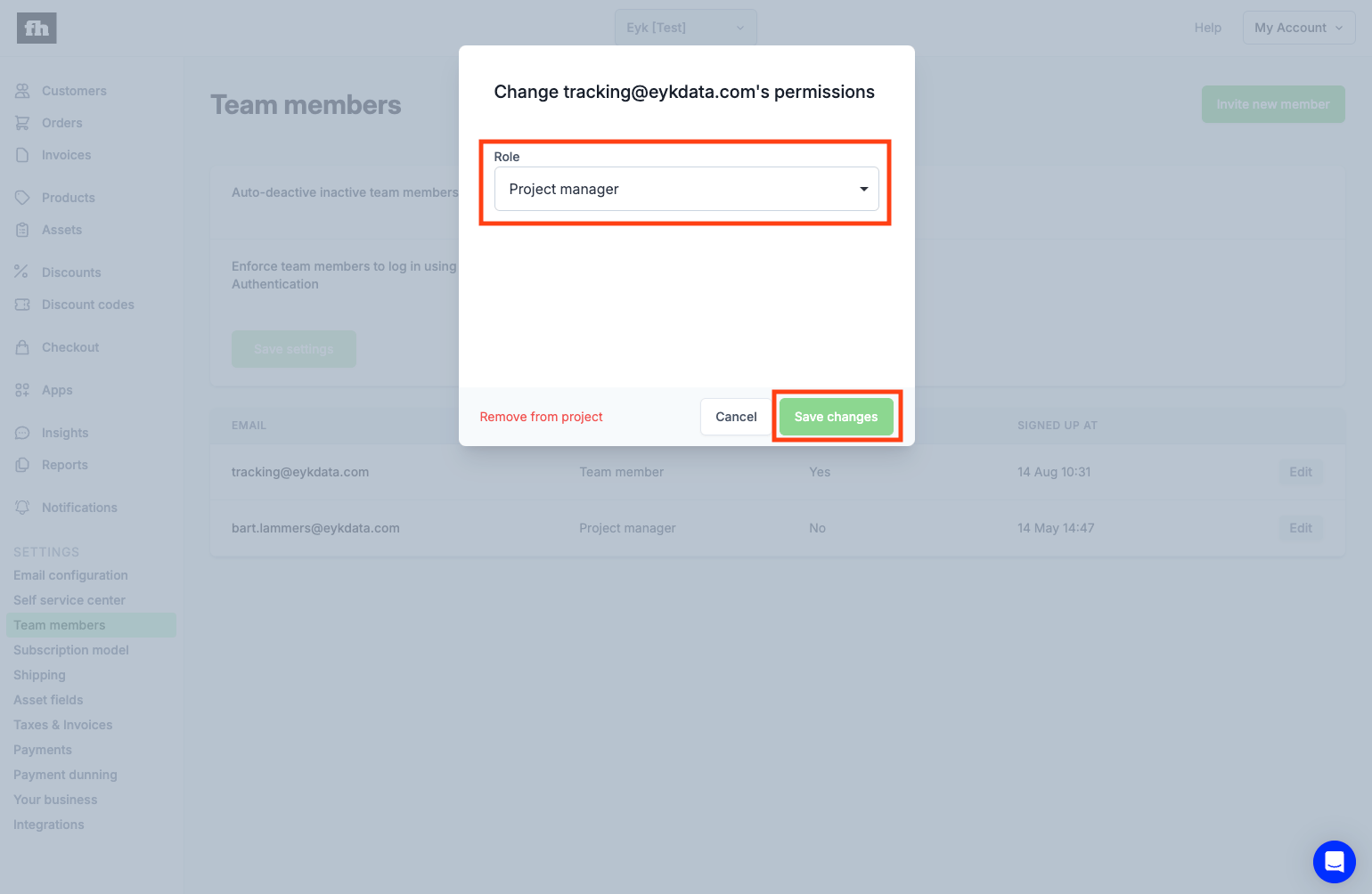
Set the role to Project manager
Select the role Project manager and click Save changes.