

What Eyk builds from this data
Eyk copies the results of your email campaigns and flows into your own BigQuery project. BigQuery is the data warehouse Eyk sets up for you. All email platforms land in the same table, so you can compare them side by side.
To open your BigQuery project, click Google BigQuery at the bottom of the Eyk sidebar.
Before you start
You need:- Owner, Admin or Manager access to your Klaviyo account.
- Access to the Sources page in Eyk.
Part 1: Create an API key in Klaviyo
1
Open API keys
In Klaviyo, click your organization name in the bottom-left corner and go to Settings >> API keys.
2
Create a private API key
Click Create Private API Key and enter a name, like
Eyk.3
Choose read-only access
Under Select Access Level, select Read-Only Key, then click Create.
4
Copy the key
Copy the key and store it somewhere safe. You need it in Part 2.
Part 2: Add the source in Eyk
1
Open the source library
In Eyk, go to Sources and click Add new source.
2
Select Klaviyo
In the Data source library, click Add next to Klaviyo.
3
Enter your API key
Paste the key from Part 1 under API key.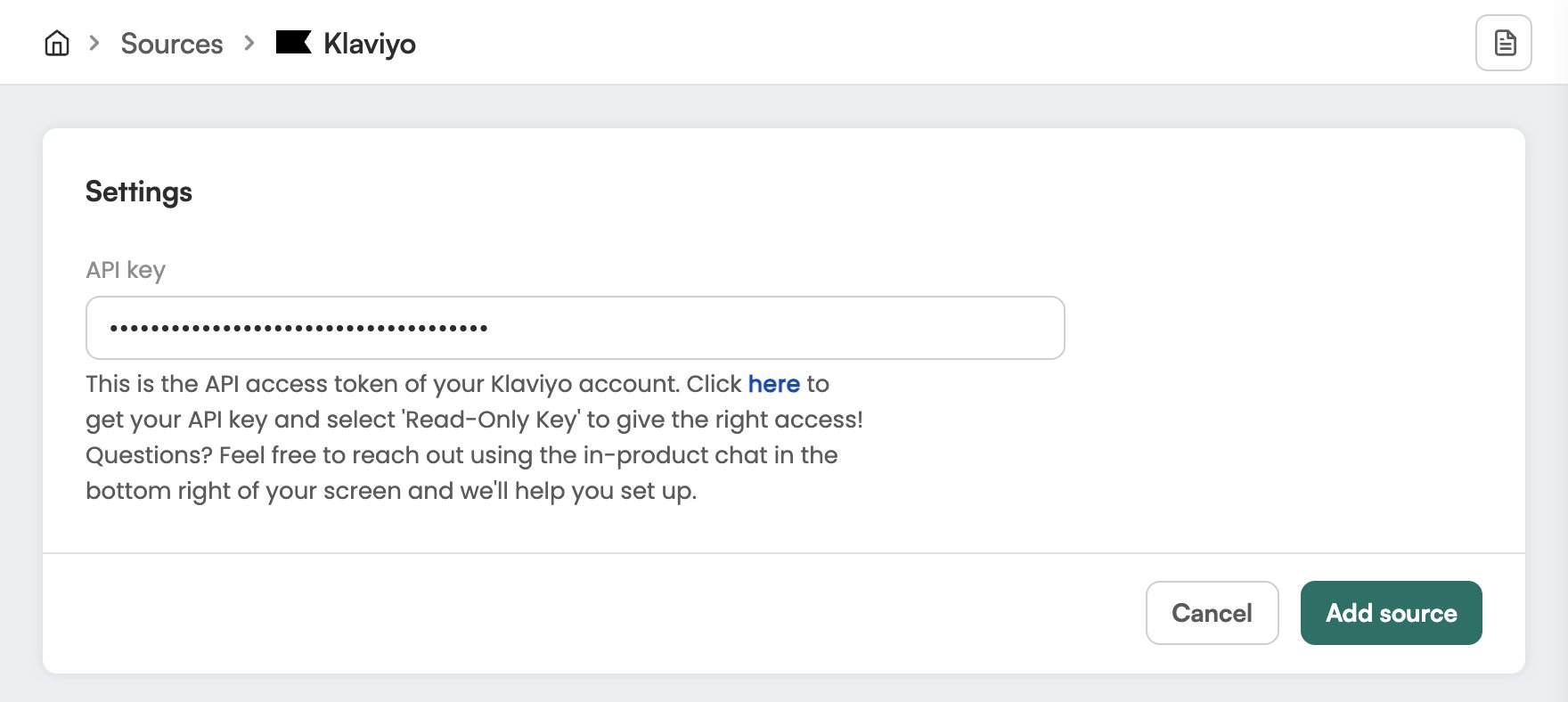
4
Add the source
Click Add source.
Check it worked
In Eyk, go to Sources. Klaviyo is in the list with the text Your data source is connected. Eyk updates your BigQuery tables every night.Troubleshooting
Klaviyo shows Attention needed
Klaviyo shows Attention needed
Open the Klaviyo source in Eyk and check the API key. If it no longer works, create a new read-only key in Klaviyo and enter it there.