Before you start
You need:- Access to your Google Analytics 4 property.
- Access to the Tracking page in Eyk.
Part 1: Get your Measurement ID from Google Analytics
1
Open your GA4 property
Open the GA4 property you want to connect to Eyk.
2
Open Admin
Click Admin in the bottom left corner.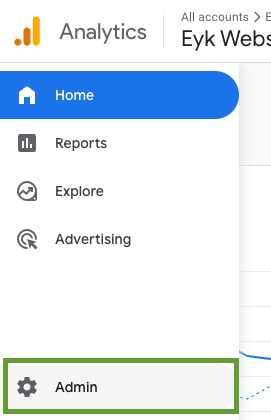
3
Open Data streams
In the section Data collection and modification, click Data streams.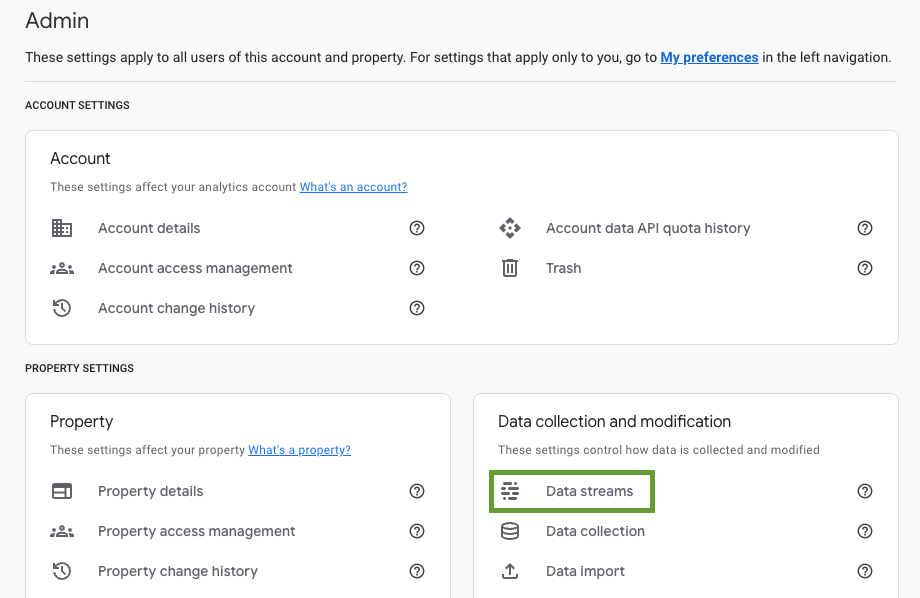
4
Select your stream
Click the stream. If you have no stream yet, click Add stream and create a stream of type WEB.
5
Copy the Measurement ID
Copy the Measurement ID. You need it in Part 2.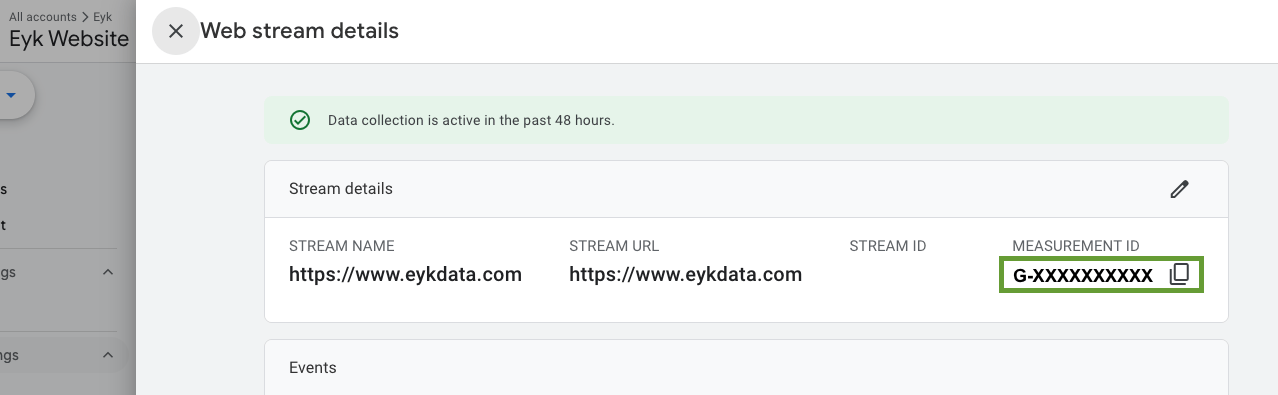
Part 2: Add the destination in Eyk
1
Add a destination
In Eyk, go to Tracking and click + Add destination.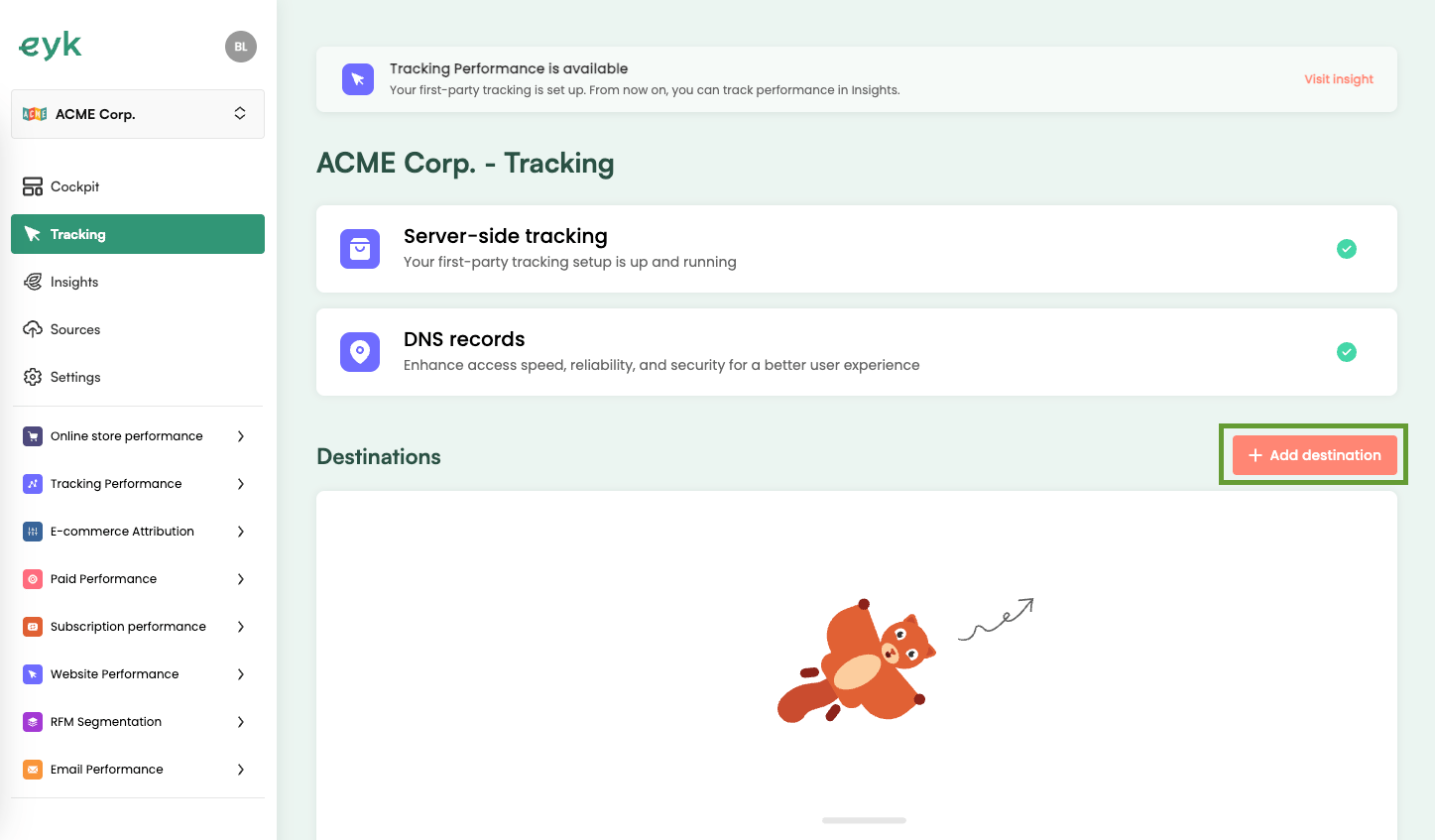
2
Select Google Analytics 4
Select Google Analytics 4 from the list of destinations.
3
Start verification
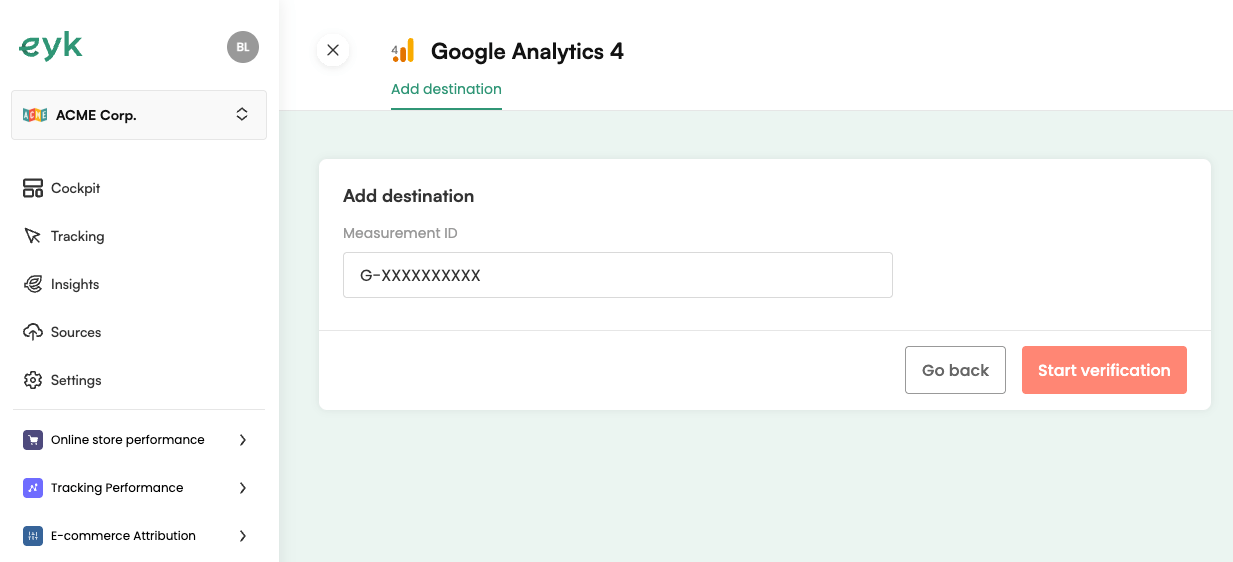
Enter the Measurement ID from Part 1 and click Start verification.