> ## Documentation Index
> Fetch the complete documentation index at: https://docs.eykdata.com/llms.txt
> Use this file to discover all available pages before exploring further.
# Tracking for Shopify
> Server-side tracking
To set-up server-side tracking for your store, the Eyk team will need to have access to your Shopify admin settings. Follow the steps below to give the access needed.
## Shopify access
By taking these steps, you will give Eyk the required access for setting up server side tracking. Access is given through a collaborator request, which can be revoked at any time.
🤝 We're here to help! Know that the Eyk team is available for hands-on support to guide you to a fully first-party tracking setup
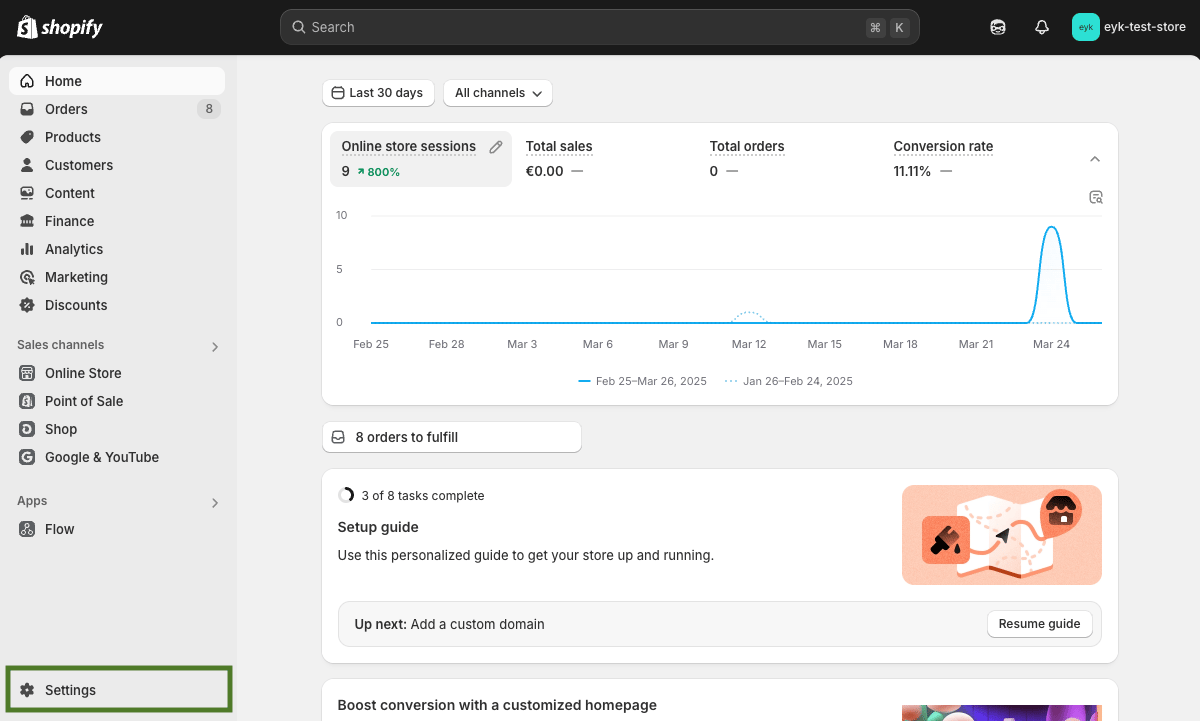
In Shopify admin, go to **Settings** by clicking in the bottom left
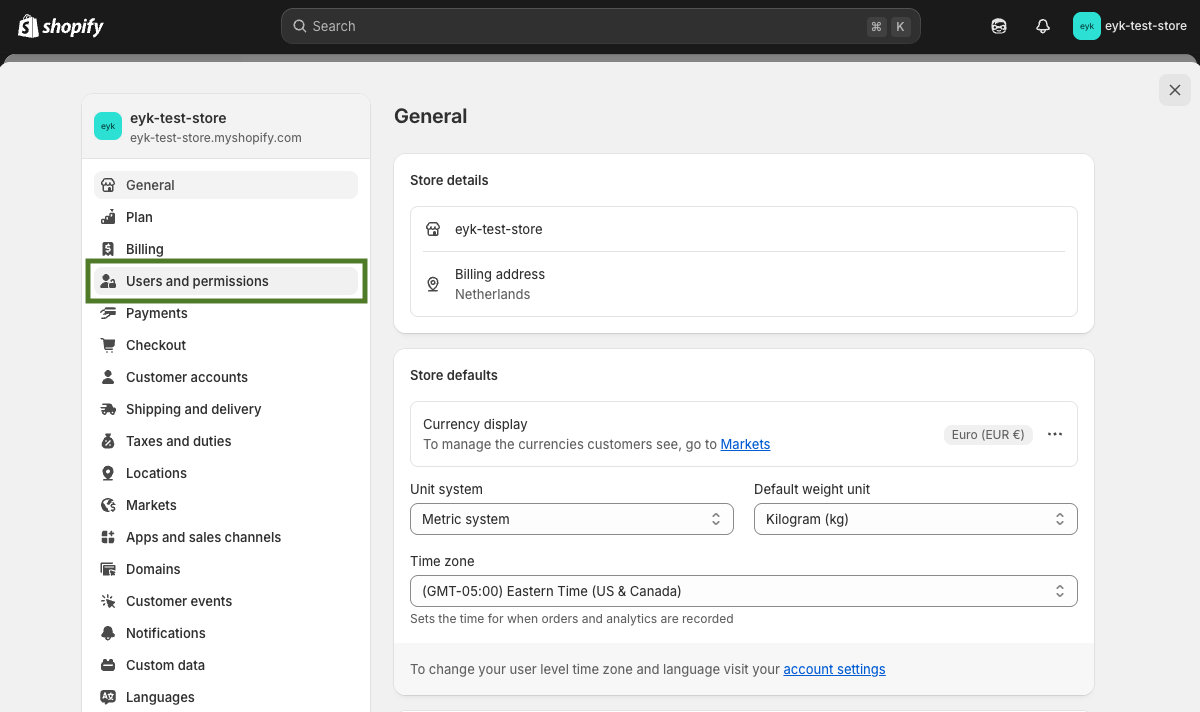
 In the menu on your left, click on **Users and permissions**
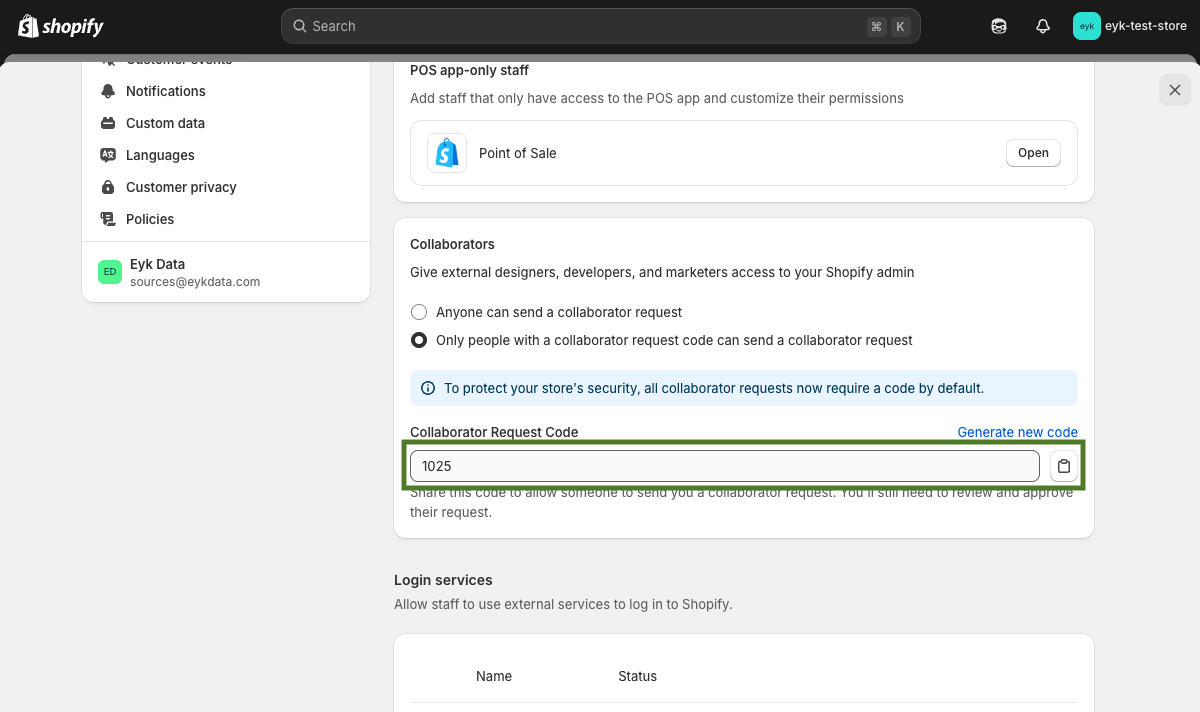
 Scroll down to the **Collaborators** section and copy the 4-digit **Collaborator Request Code**
 Share the collaborator request code with your contact person at Eyk
☕️ grab a coffee while the Eyk team sends you a collaborator request
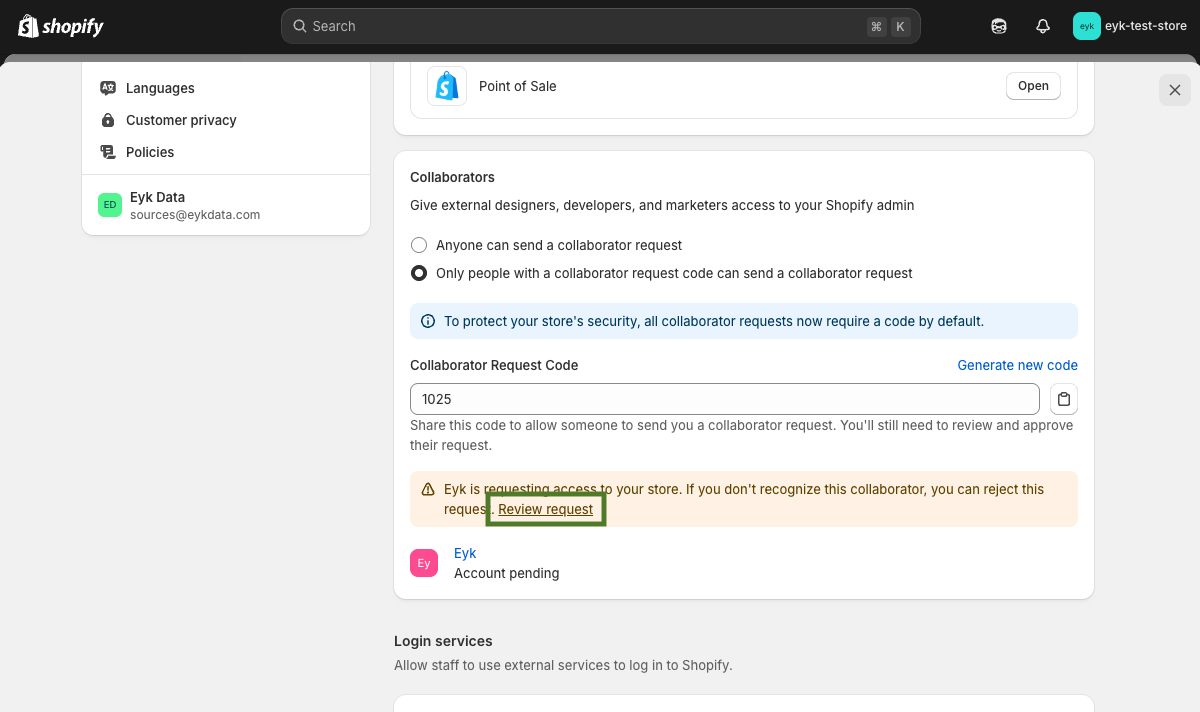
You will by notified by a new collaborator request from Eyk. To accept, again go to **Users and permissions** and scroll down to the **Collaborators** section. Then click on **Review request**
Share the collaborator request code with your contact person at Eyk
☕️ grab a coffee while the Eyk team sends you a collaborator request
You will by notified by a new collaborator request from Eyk. To accept, again go to **Users and permissions** and scroll down to the **Collaborators** section. Then click on **Review request**
 On the page with the Eyk collaborator info, you'll need to add two additional permissions:
1. Under **Online store** additionally tick the checkboxes **Themes** and **Edit code**
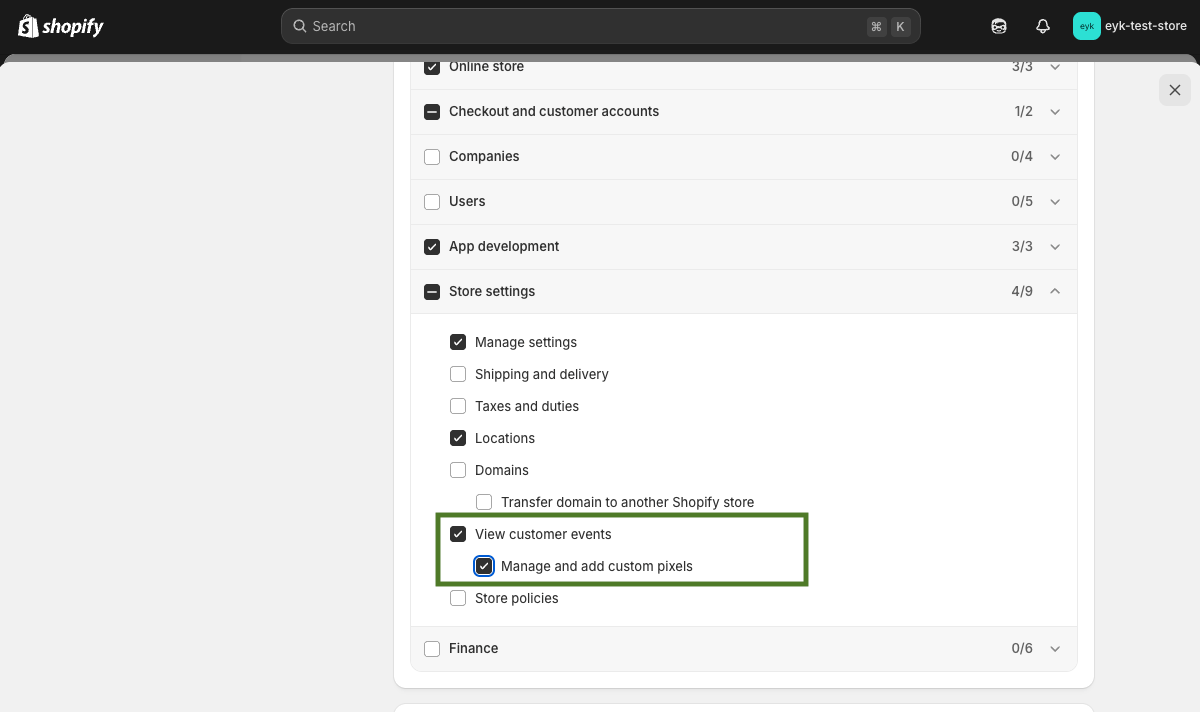
2. Under **Store settings** additionally tick the checkboxes **View customer events** and **Manage and add custom pixels**
On the page with the Eyk collaborator info, you'll need to add two additional permissions:
1. Under **Online store** additionally tick the checkboxes **Themes** and **Edit code**
2. Under **Store settings** additionally tick the checkboxes **View customer events** and **Manage and add custom pixels**
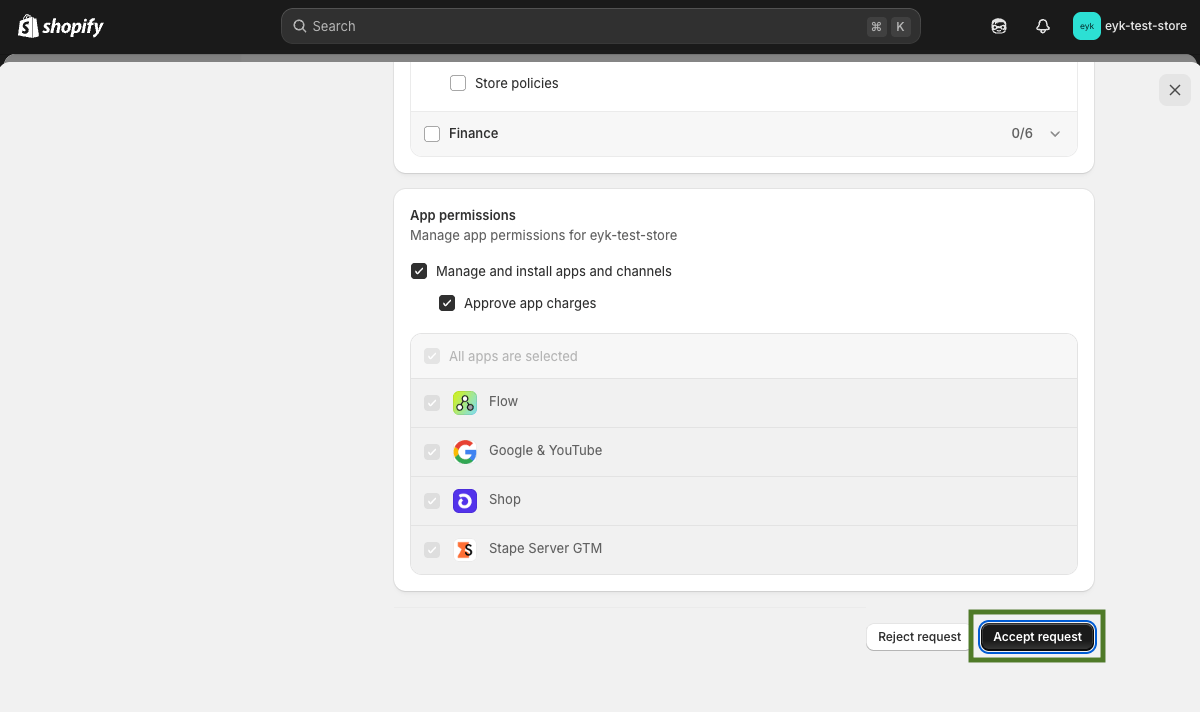
 Lastly, scroll down to the bottom of the page and click **Accept request**
 All done 🎉
After completing these steps, the Eyk team will have the access needed to set up server side tracking for your Shopify store.
All done 🎉
After completing these steps, the Eyk team will have the access needed to set up server side tracking for your Shopify store.