> ## Documentation Index
> Fetch the complete documentation index at: https://docs.eykdata.com/llms.txt
> Use this file to discover all available pages before exploring further.
# Tracking for Firmhouse
> Server-side tracking
To set-up server-side tracking for your store, a new user for Eyk will need to be added in the Firmhouse project. We've written down the steps to take below.
## Create a new Firmhouse user for Eyk
🤝 We're here to help! Know that the Eyk team is available for hands-on support to guide you to a fully first-party tracking setup
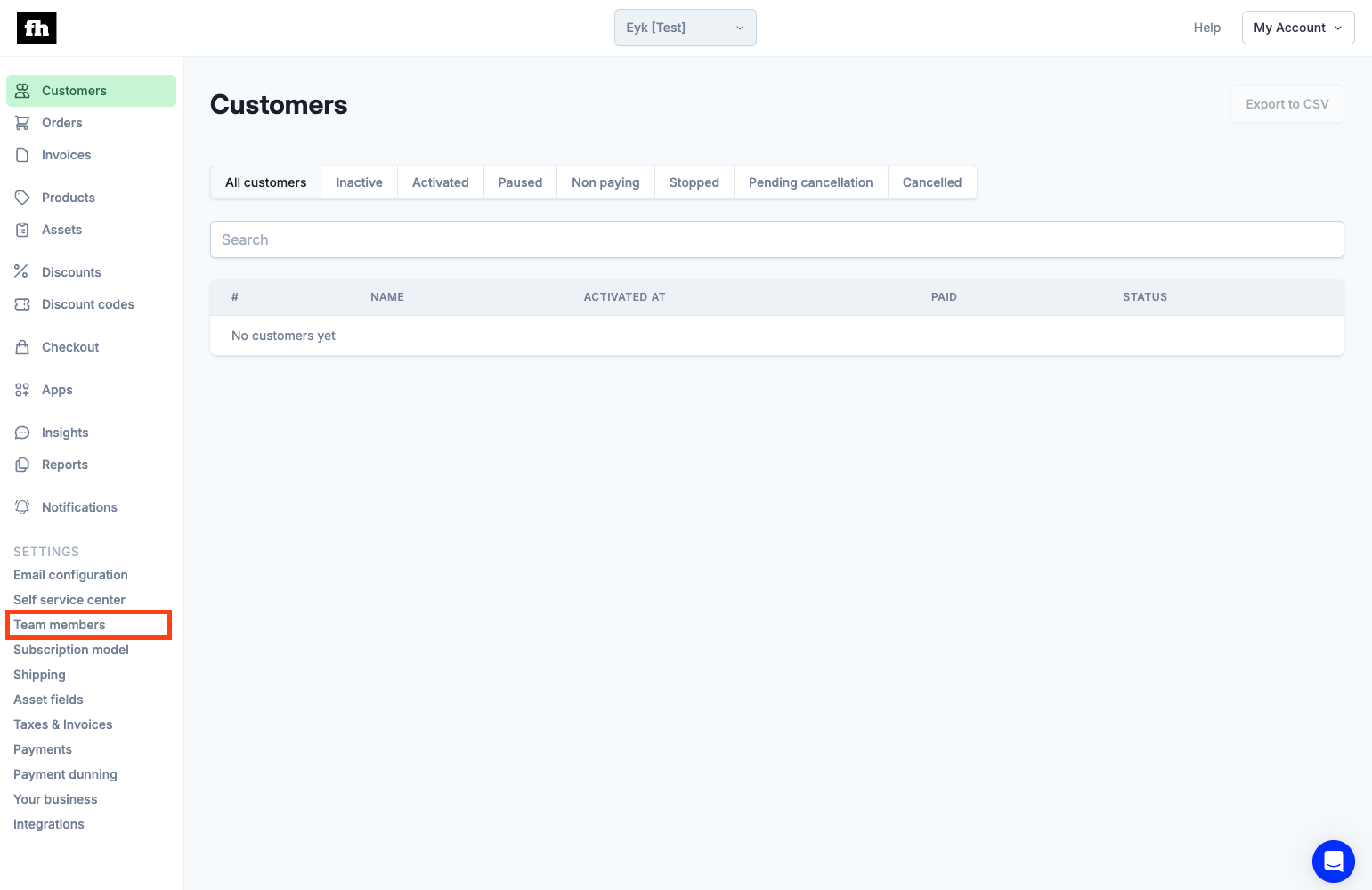
In your Firmhouse project, click on **Team members**, located under **Settings** in the menu on your left side
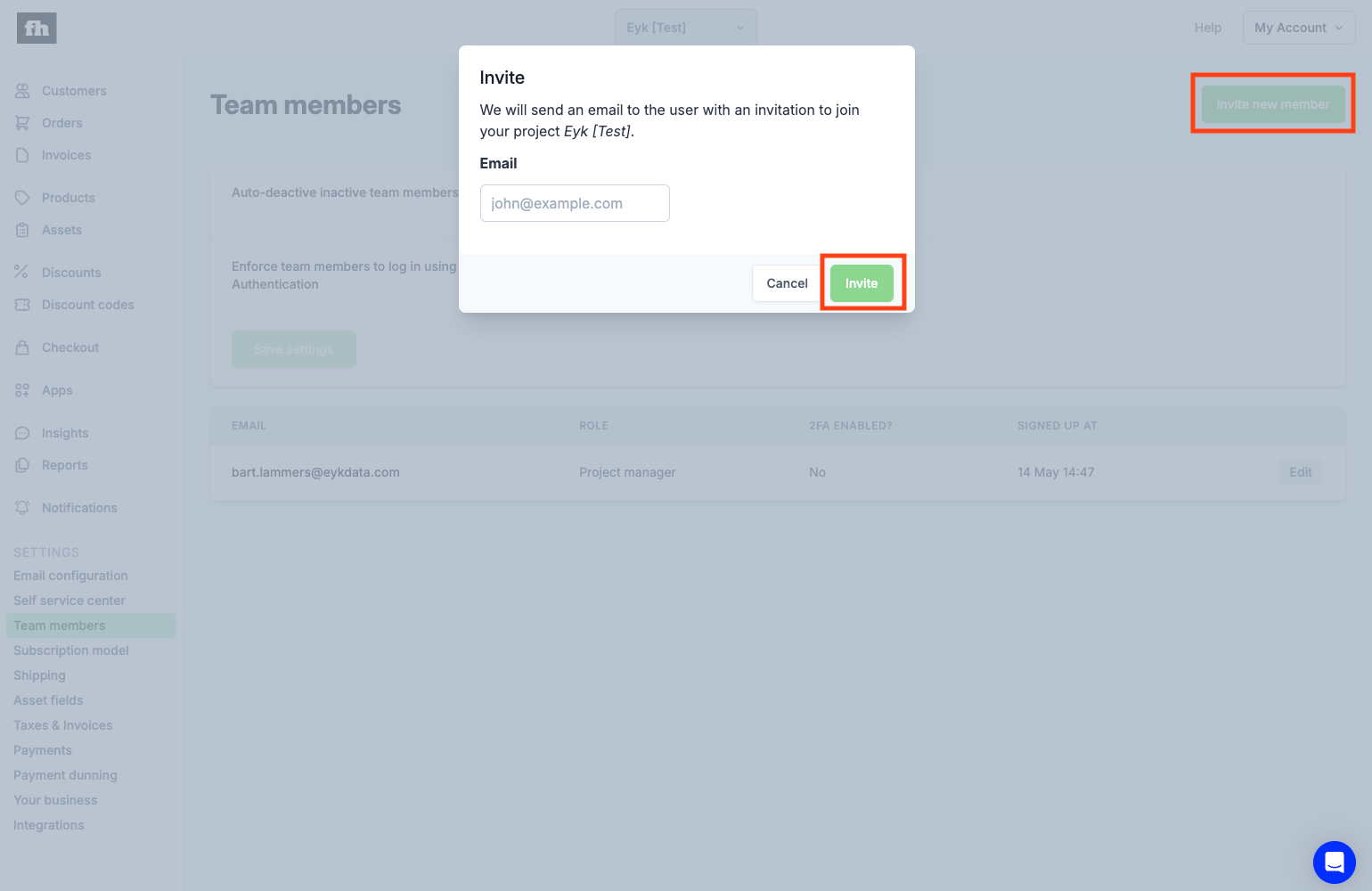
 Click on the **Invite new member** button in the top-right corner. A pop-up will open. Please enter the email address [tracking@eykdata.com](mailto:tracking@eykdata.com) and click **Invite**
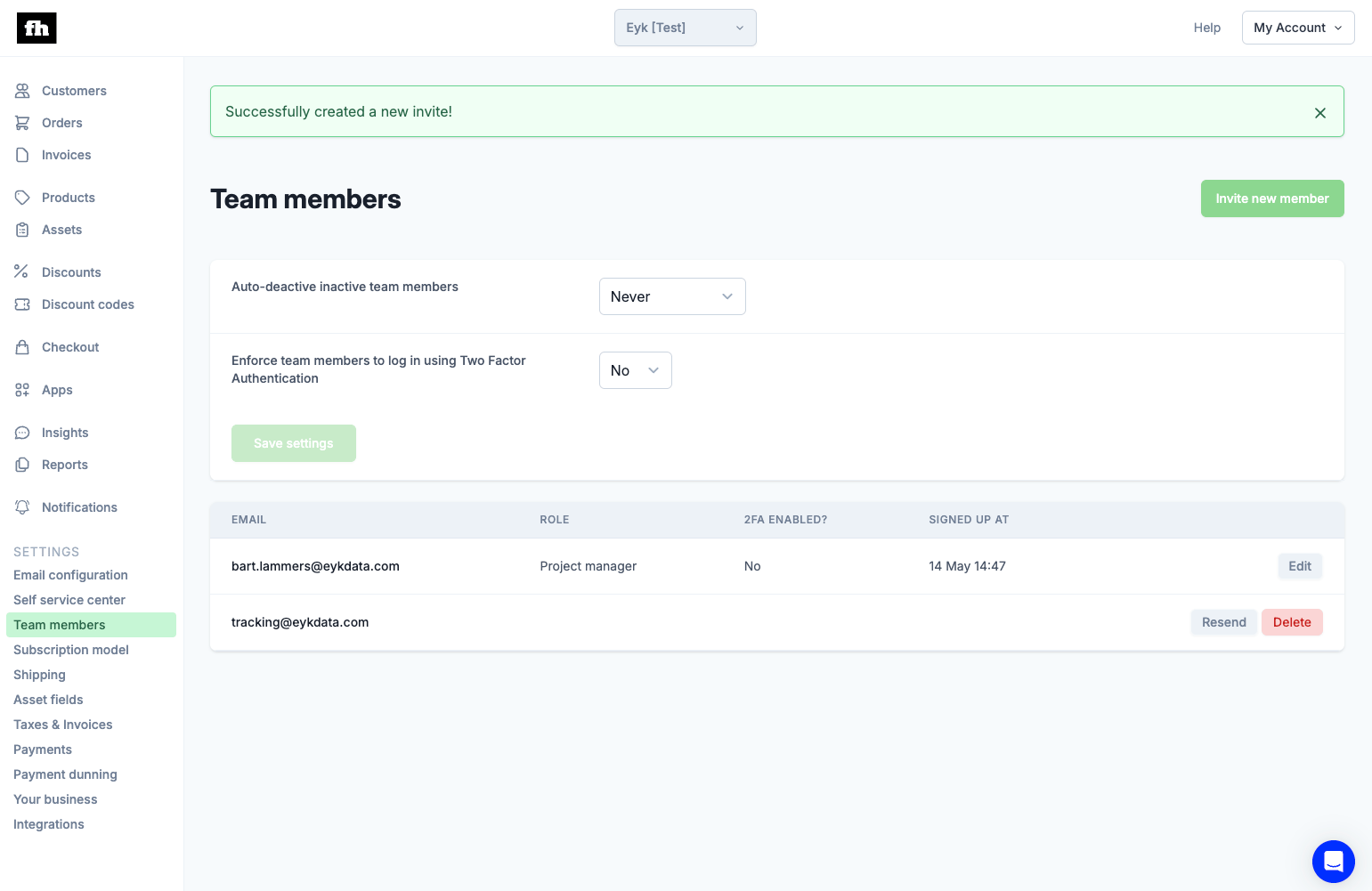
 You will now a screen similar to the one below. Please let your contact person at Eyk know that the invite has been sent. After the Eyk team accepts the invite continue with step 4 below 👇
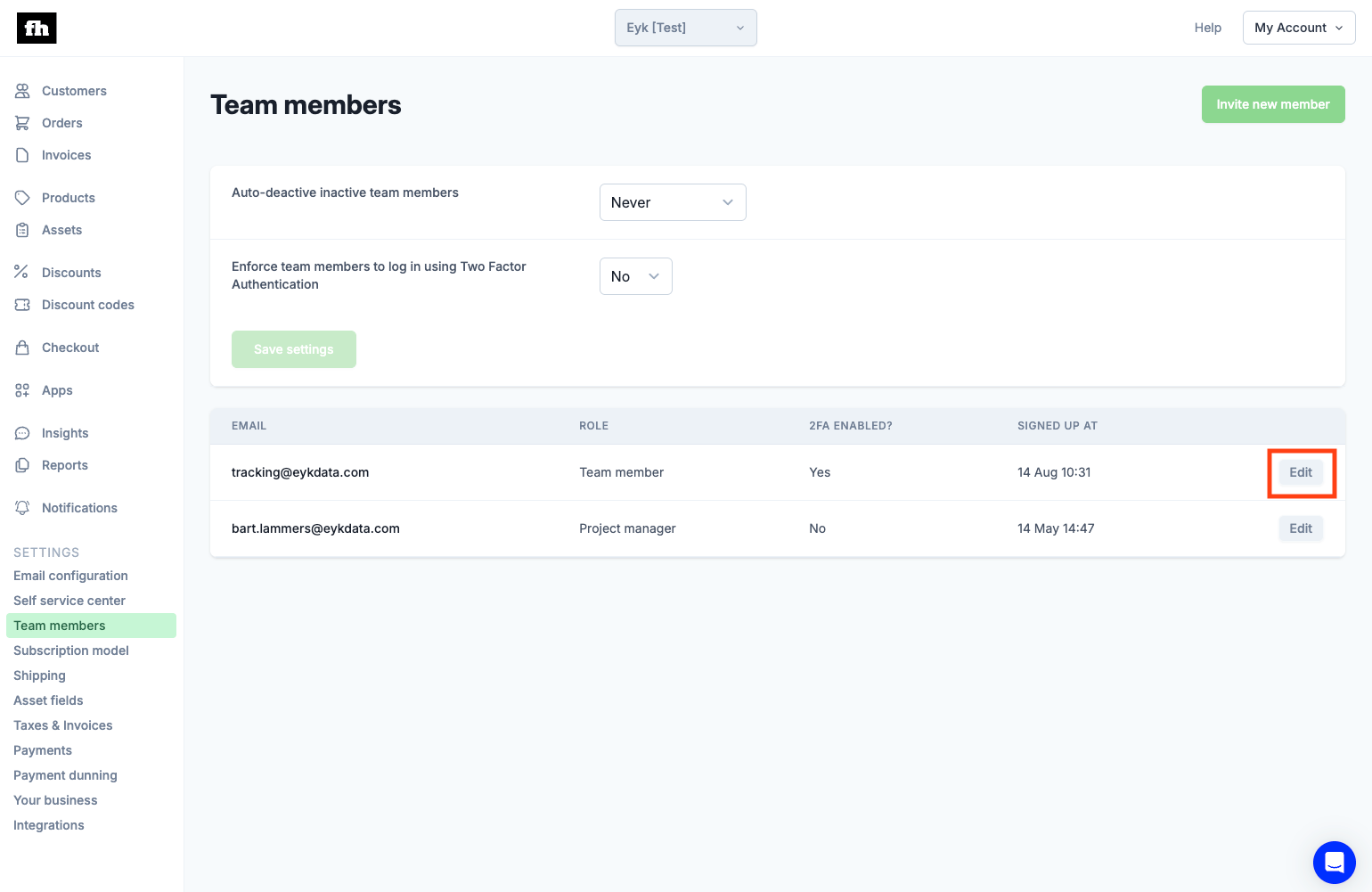
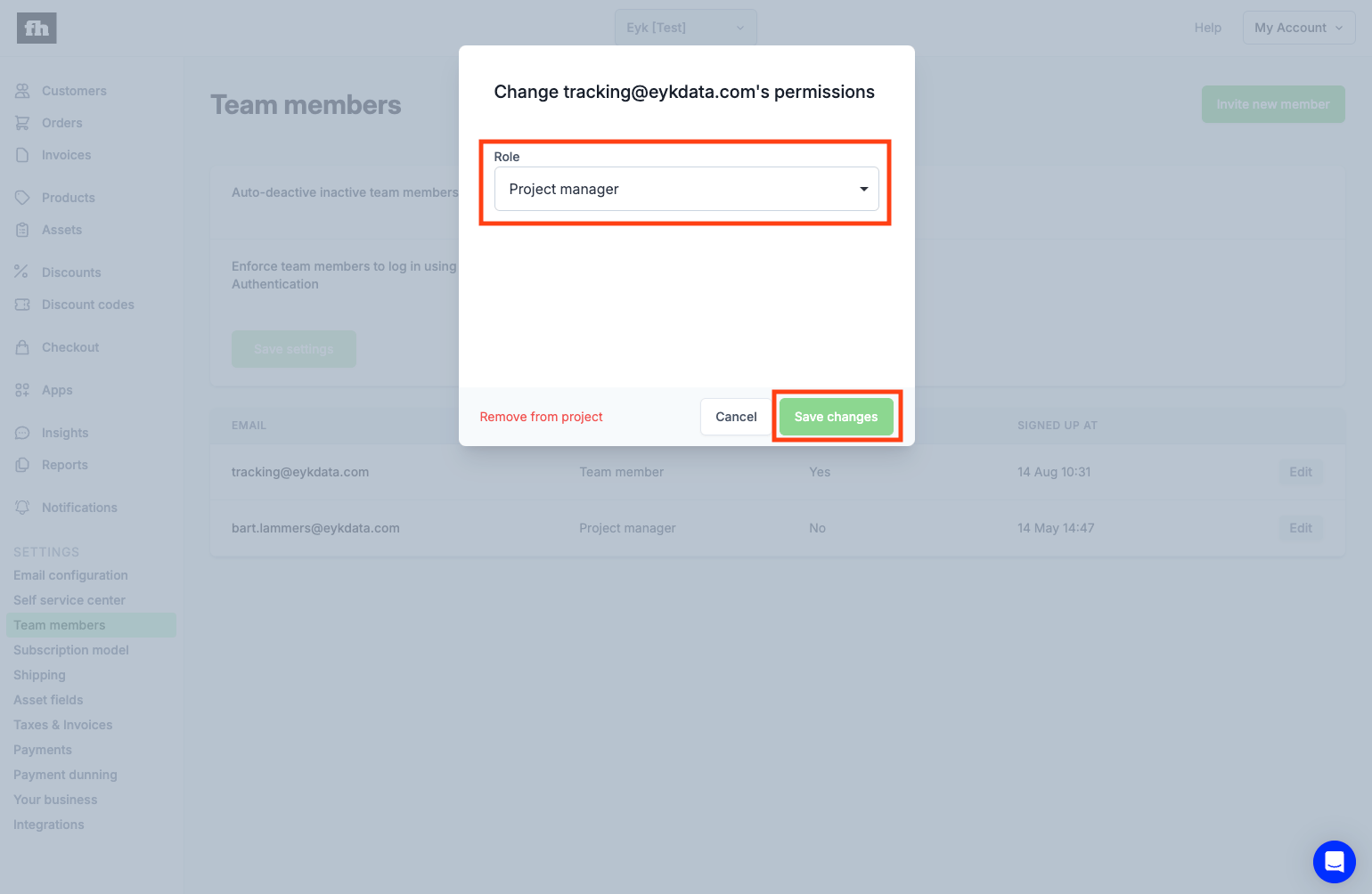
 When the Eyk team has accepted the invite, the role of the [tracking@eykdata.com](mailto:tracking@eykdata.com) user should be changed. Click on the **Edit** button to open the pop-up. Then select role **Project manager** and click **Save changes** to save
 All done ✅