> ## Documentation Index
> Fetch the complete documentation index at: https://docs.eykdata.com/llms.txt
> Use this file to discover all available pages before exploring further.
# Meta Ads destination
> Conversion tracking
The Meta Ads destination in Eyk sends both Client-side and Server-side event data to Meta, and can be used to optimise campaigns running on Facebook and Instagram.
## Setup instructions
Go to [Facebook Events Manager](https://business.facebook.com/events_manager2) for your ads account.
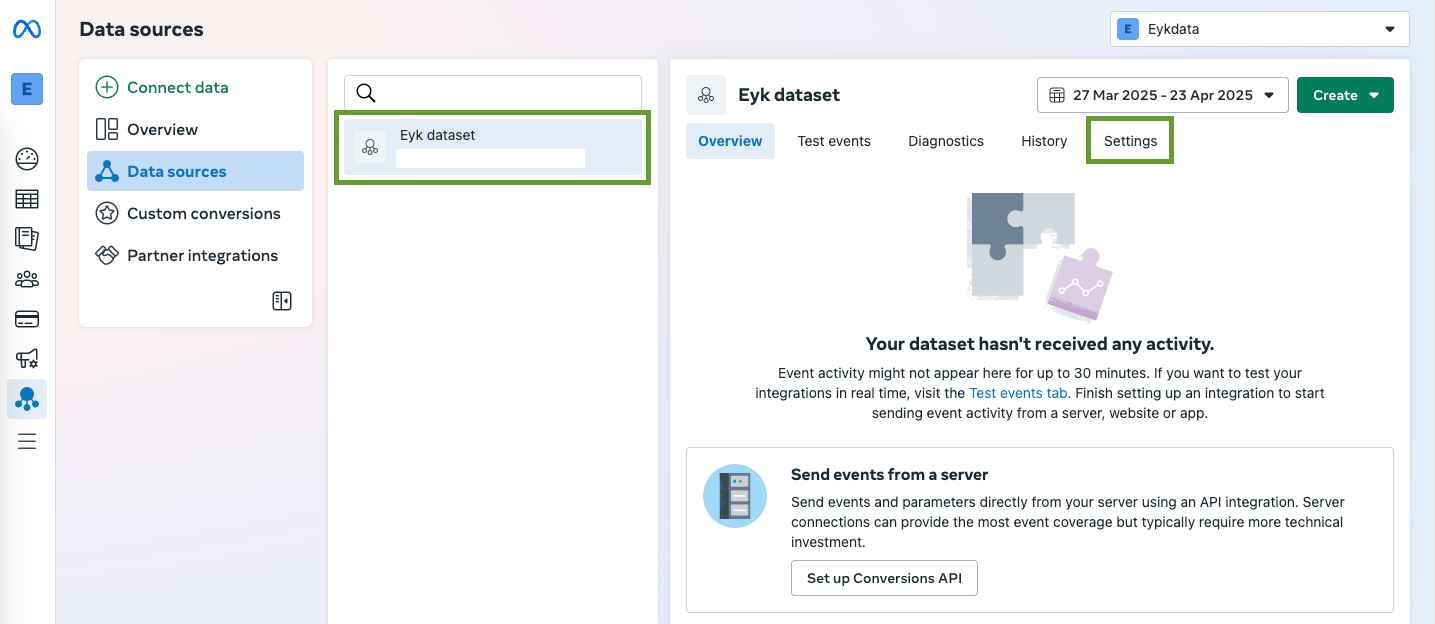
In the **Data sources** list, click on the data source you would like to connect. Then navigate to the **Settings** tab.
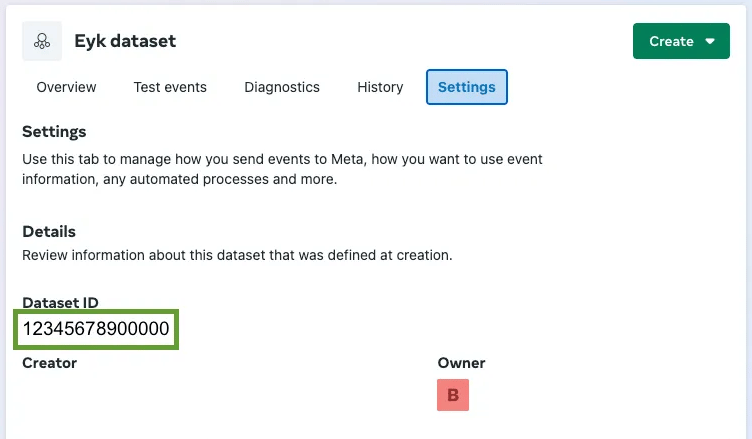
 On the **Settings** tab, copy the **Dataset ID** — you will need this later.
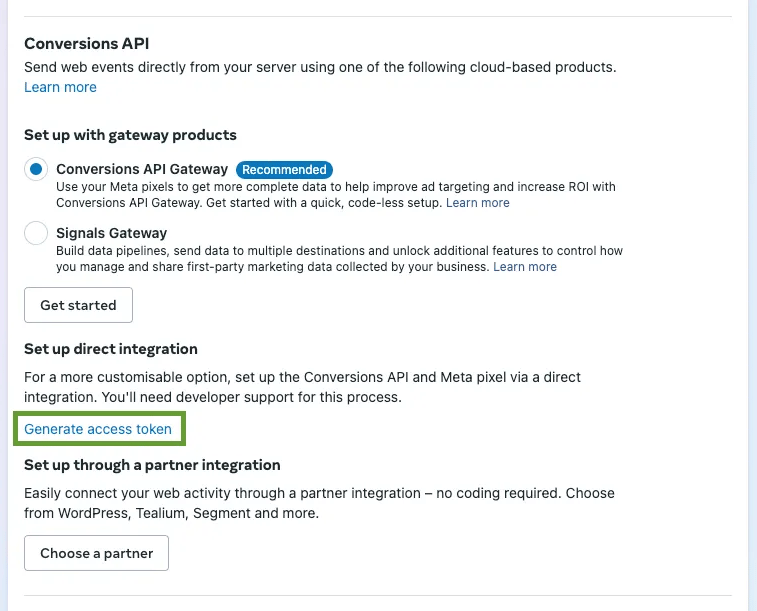
 On the **Settings** tab, scroll down to the **Conversion API** section and click **Generate access token**. Copy the access token, you'll need this in one of the next steps.
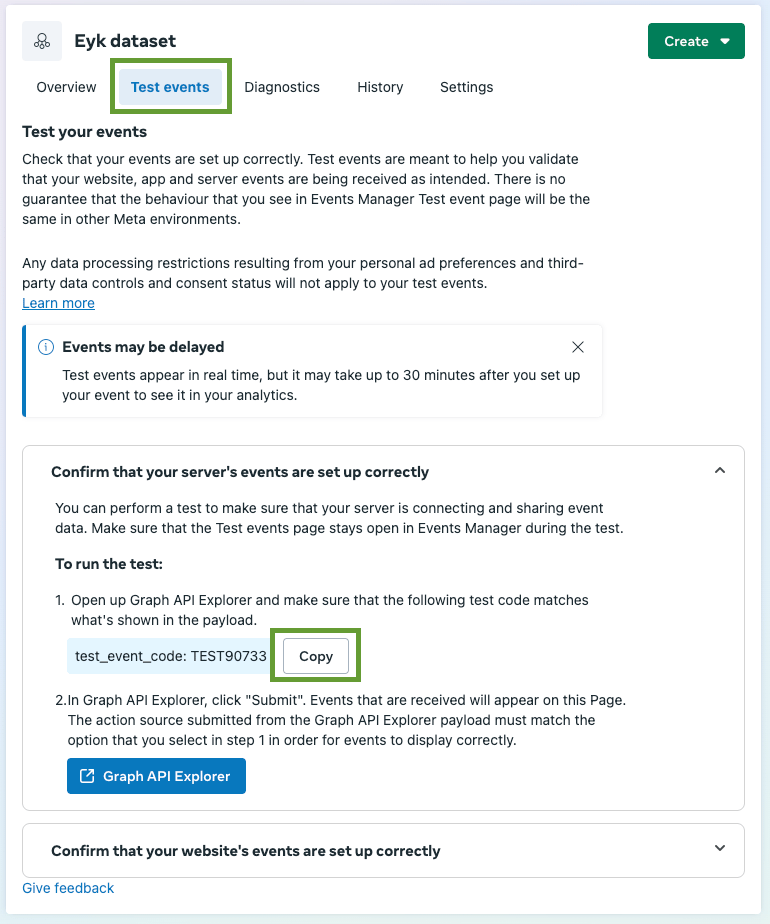
 Go the **Test events** tab. Open the section **Confirm that your server's events are set up correctly**. Click the **Copy** button to copy the test event code — you'll need this in the next step.
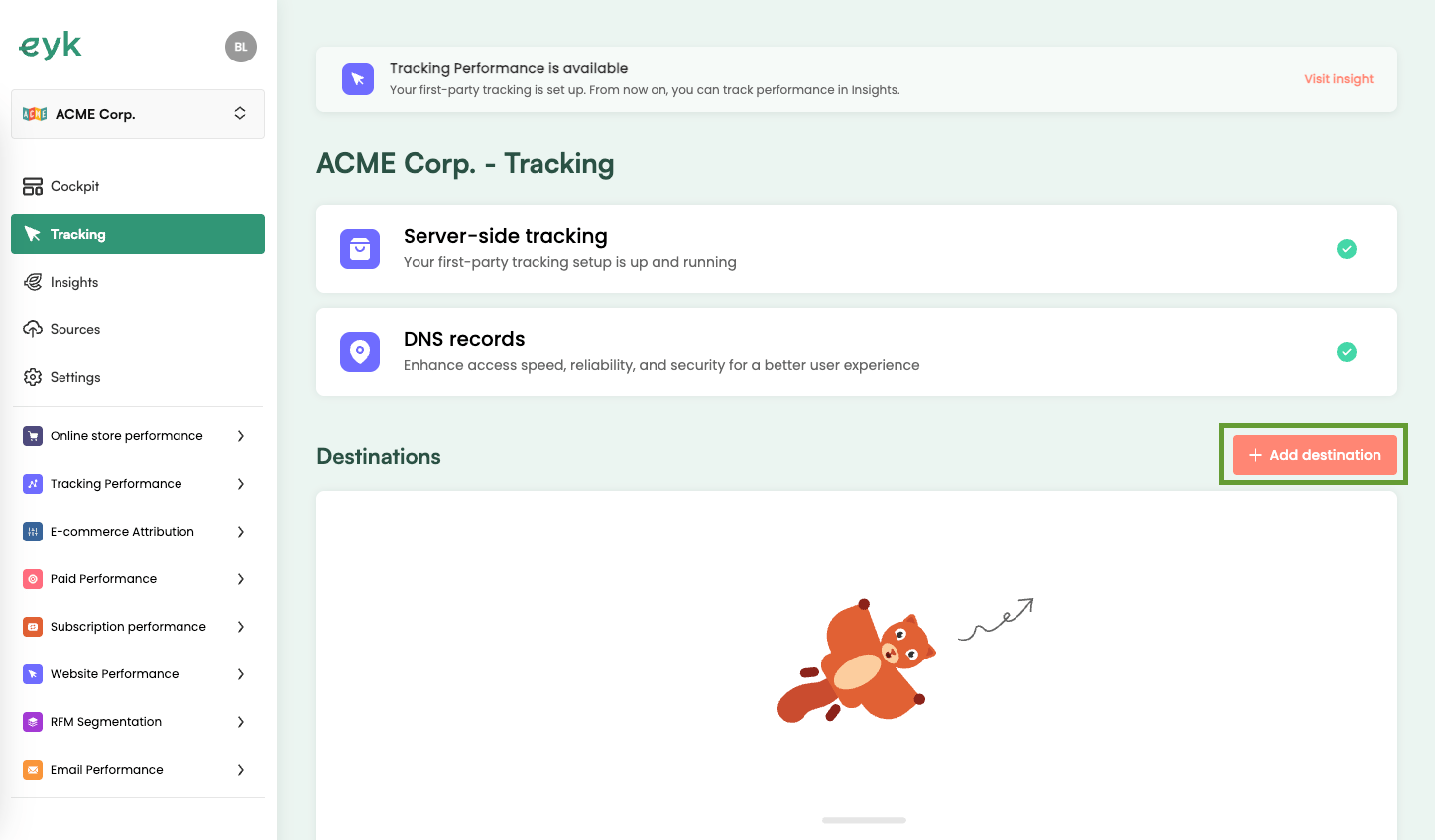
 In your Eyk environment, go to **Tracking** and click the **+ Add destination** button.
 Select **Meta Ads** from the list of destinations.
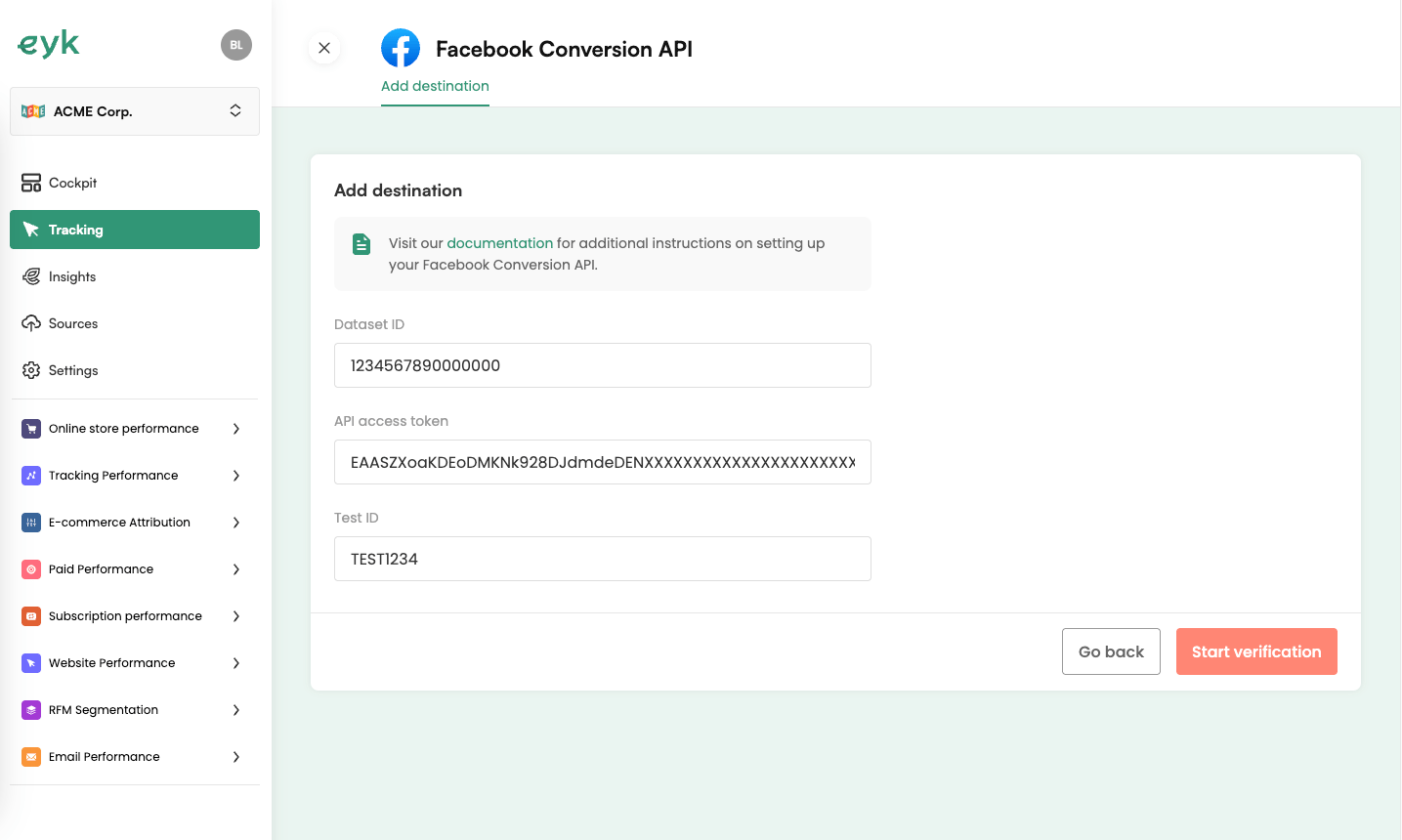
Enter the **Dataset ID**, **API access token** and **Test ID** collected in the previous steps and click **Start verification**.
Select **Meta Ads** from the list of destinations.
Enter the **Dataset ID**, **API access token** and **Test ID** collected in the previous steps and click **Start verification**.
 All done! ✅
Once you publish this destination, you should pause or remove all existing Facebook tracking. Leaving these on will lead to duplicate tracking.
All done! ✅
Once you publish this destination, you should pause or remove all existing Facebook tracking. Leaving these on will lead to duplicate tracking.