> ## Documentation Index
> Fetch the complete documentation index at: https://docs.eykdata.com/llms.txt
> Use this file to discover all available pages before exploring further.

# Google Analytics 4 destination

> Conversion tracking

The Google Analytics 4 destination in Eyk sends both Client-side and Server-side event data to Google Analytics.

## Setup instructions

<Steps>
  <Step title="Open your GA4 property">
    Go to the GA4 property that you would like to connect to Eyk.
  </Step>

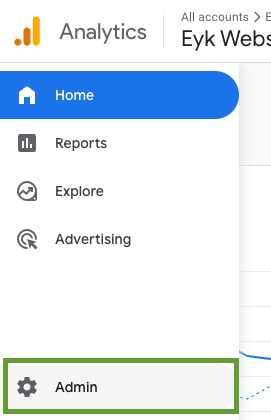
  <Step title="Open Admin">
    Click on **Admin** in the bottom left corner.
    <Frame>
      <img src="https://mintcdn.com/eyk-data/003HpFVjXCLV8bE-/images/destinations/google-analytics-4/01-admin-menu.png?fit=max&auto=format&n=003HpFVjXCLV8bE-&q=85&s=5c2a1d66b19d989bbf424204ffe1285c" alt="Admin menu in Google Analytics 4" width="271" height="420" data-path="images/destinations/google-analytics-4/01-admin-menu.png" />
    </Frame>
  </Step>

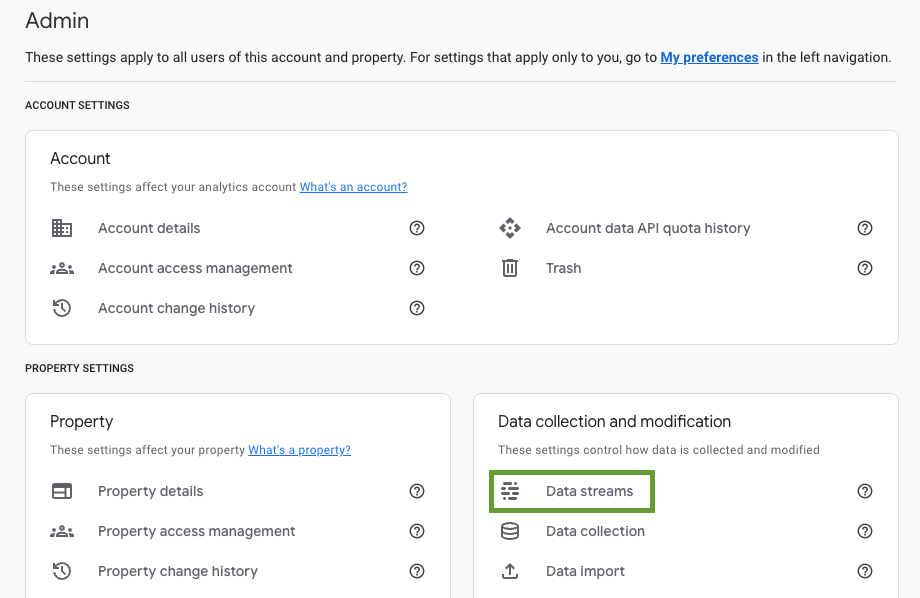
  <Step title="Open Data streams">
    In the section **Data collection and modification**, click on **Data streams**.
    <Frame>
      <img src="https://mintcdn.com/eyk-data/003HpFVjXCLV8bE-/images/destinations/google-analytics-4/02-data-streams.png?fit=max&auto=format&n=003HpFVjXCLV8bE-&q=85&s=2dabb2bf89ce1bde3375d17ff2c9f3ac" alt="Data streams section" width="920" height="598" data-path="images/destinations/google-analytics-4/02-data-streams.png" />
    </Frame>
  </Step>

  <Step title="Select your stream">
    Click on the stream. If you don't have a stream yet, use the **Add stream** button to create a new stream of type **WEB**.

    <Frame>
      <img src="https://mintcdn.com/eyk-data/003HpFVjXCLV8bE-/images/destinations/google-analytics-4/03-select-stream.png?fit=max&auto=format&n=003HpFVjXCLV8bE-&q=85&s=5da0f5bd66a289c22227cc0be4996db6" alt="Select a data stream" width="1172" height="197" data-path="images/destinations/google-analytics-4/03-select-stream.png" />
    </Frame>
  </Step>

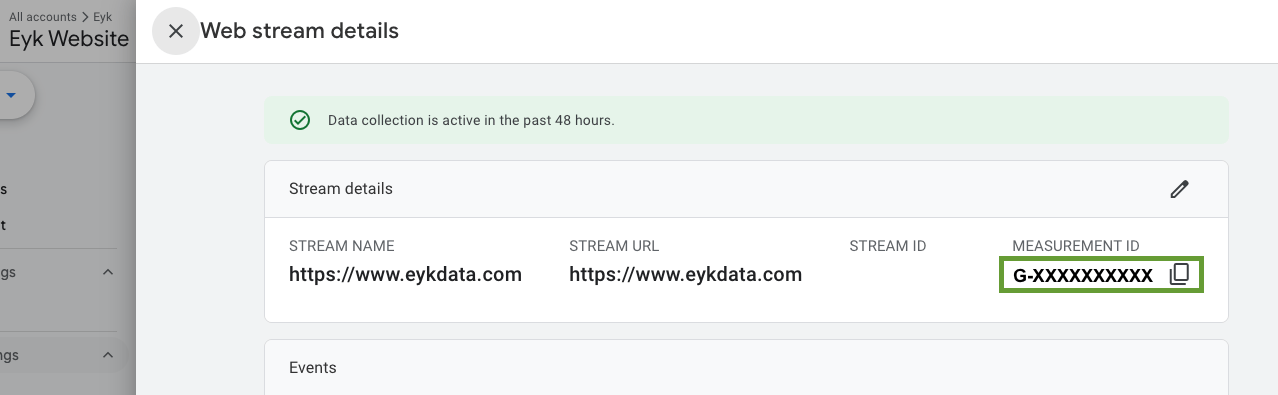
  <Step title="Copy the Measurement ID">
    Copy the **Measurement ID** — you'll need it in the next steps.
    <Frame>
      <img src="https://mintcdn.com/eyk-data/003HpFVjXCLV8bE-/images/destinations/google-analytics-4/04-measurement-id.png?fit=max&auto=format&n=003HpFVjXCLV8bE-&q=85&s=86f2e3b3c4dc588c059dd604f32c8f54" alt="Measurement ID field" width="1278" height="395" data-path="images/destinations/google-analytics-4/04-measurement-id.png" />
    </Frame>
  </Step>

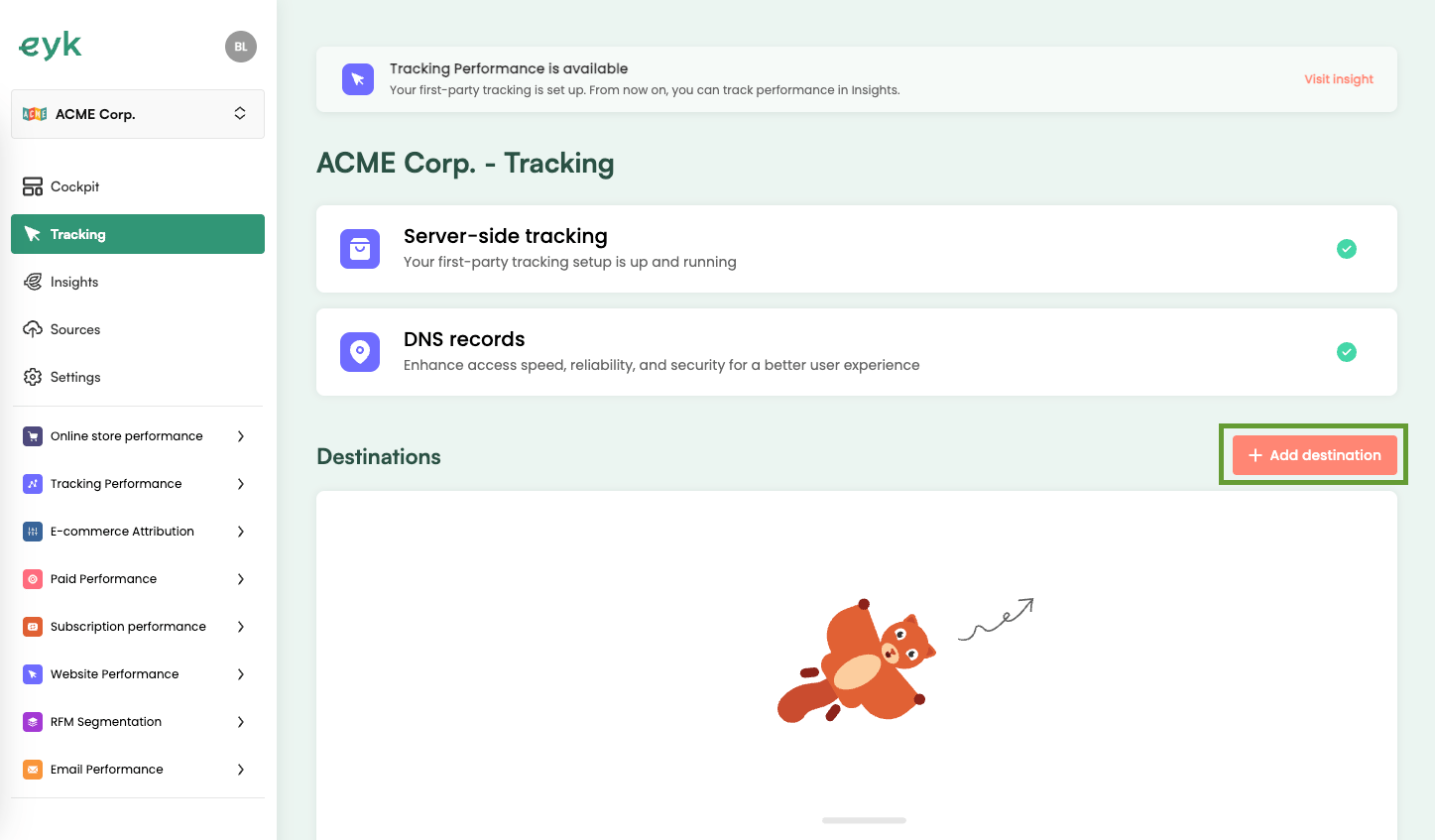
  <Step title="Add the destination in Eyk">
    In your Eyk environment, go to **Tracking** and click the **+ Add destination** button.
    <Frame>
      <img src="https://mintcdn.com/eyk-data/003HpFVjXCLV8bE-/images/destinations/google-analytics-4/05-add-destination-button.png?fit=max&auto=format&n=003HpFVjXCLV8bE-&q=85&s=5a890ff13616dd7b35d18f9a7dcb1080" alt="Add destination button in Eyk" width="1447" height="847" data-path="images/destinations/google-analytics-4/05-add-destination-button.png" />
    </Frame>
  </Step>

  <Step title="Select Google Analytics 4">
    Select **Google Analytics 4** from the list of destinations.
  </Step>

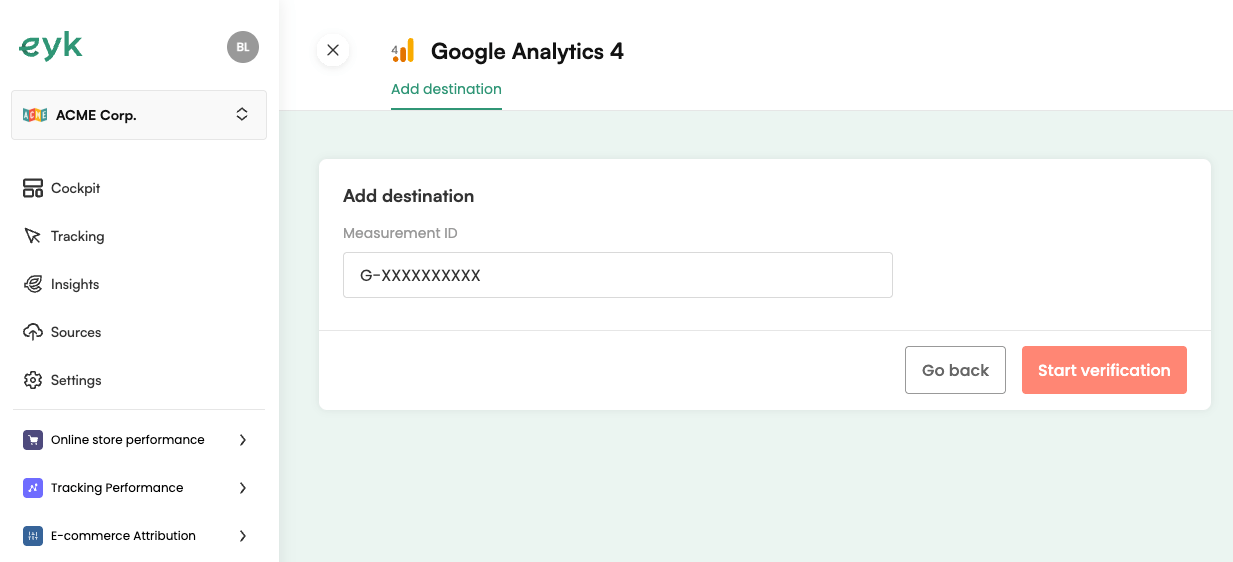
  <Step title="Start verification">
    Enter the Measurement ID collected in the previous steps and click **Start verification**.
    <Frame>
      <img src="https://mintcdn.com/eyk-data/003HpFVjXCLV8bE-/images/destinations/google-analytics-4/06-ga4-verification.png?fit=max&auto=format&n=003HpFVjXCLV8bE-&q=85&s=9aeabe4e98e87db2644bd697a143df83" alt="Google Analytics 4 verification screen" width="1233" height="562" data-path="images/destinations/google-analytics-4/06-ga4-verification.png" />
    </Frame>
  </Step>
</Steps>

All done! ✅

<Warning>
  Once you publish this destination, you should pause or remove all existing Google Analytics 4 tracking. Leaving these on will lead to duplicate tracking.
</Warning>
